1. Counter Process Overview
An interprovincial shipment goes through four steps at the sending post office, all performed by counter staff:
| Step | Action | Result |
|---|---|---|
| 1 | Create order — declare sender/recipient, goods, services | Order in "Awaiting goods confirmation" status, freight calculated |
| 2 | Confirm goods — verify actual goods | Finalize number of packages, system generates package codes |
| 3 | Label packages — print and attach barcode labels to each package | Packages ready for scanning at all subsequent stages |
| 4 | Transfer to operations — finalize payment method | Order "Ready for transport", enters automatic routing queue |
2. Creating Orders — By Information Group
Go to Operations → Orders → Interprovincial Delivery (/transport/order/intercity-delivery) → Add.
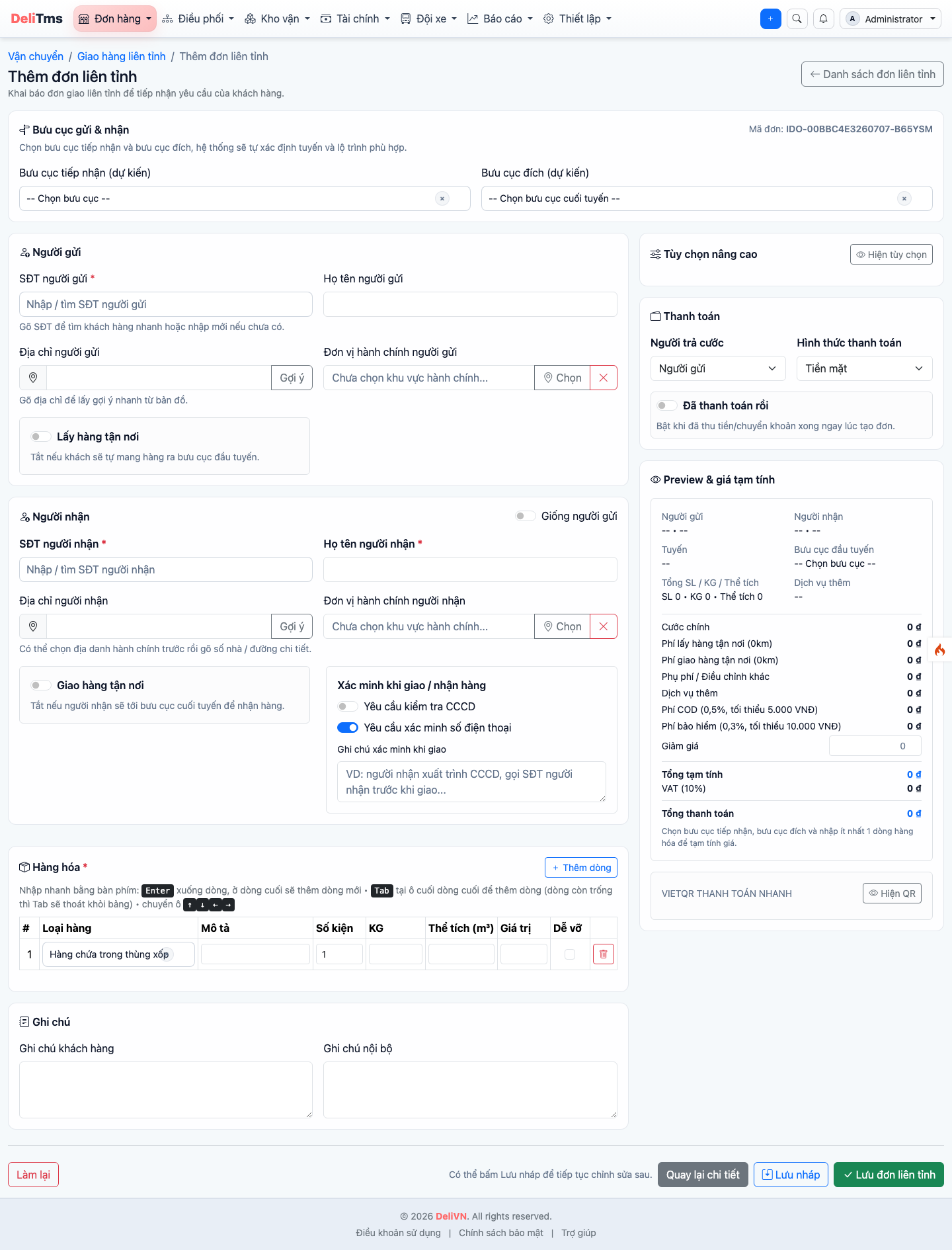
Interprovincial delivery order form — freight automatically calculated and updated with each form change.
2.1 Sender / Recipient — enter phone number first: existing customers are recognized and information is auto-filled; new customers will have profiles automatically created when the order is saved. Recipient address determines destination post office (system suggests based on service area).
2.2 Goods — one line per item: name, goods type (determines applicable price list), number of packages, weight, dimensions length × width × height. Dimensions are used to calculate volumetric weight conversion — declare accurately for bulky goods to avoid revenue loss (see chapter 02).
2.3 Pickup and Delivery Options:
| Pickup | Delivery | Operational Impact |
|---|---|---|
| Customer brings to post office | Recipient picks up at post office | No pickup/delivery fee; simplest option |
| Door-to-door pickup | — | Pickup fee added; generates pickup request for routing (chapter 04) |
| — | Door-to-door delivery | Delivery fee added; generates delivery request for driver at destination |
2.4 COD Collection — amount to be collected on behalf of sender at delivery point; collection fee calculated according to value-added service configuration. 2.5 Payer — sender pays in advance or recipient pays (collected at receiving end). 2.6 Additional Services — insurance, packaging... according to company's declared catalog.
The estimated freight block on the right side of the form lists each component (main freight, pickup/delivery fees, COD fee, additional services) — can be verified immediately with customer before saving.
2.7 Batch Order Creation — when customer sends to multiple recipients at once (multiple delivery points, same sender), use Batch Create (button next to Add on list page, or /transport/order/intercity-delivery/batch-create) instead of creating individual orders:
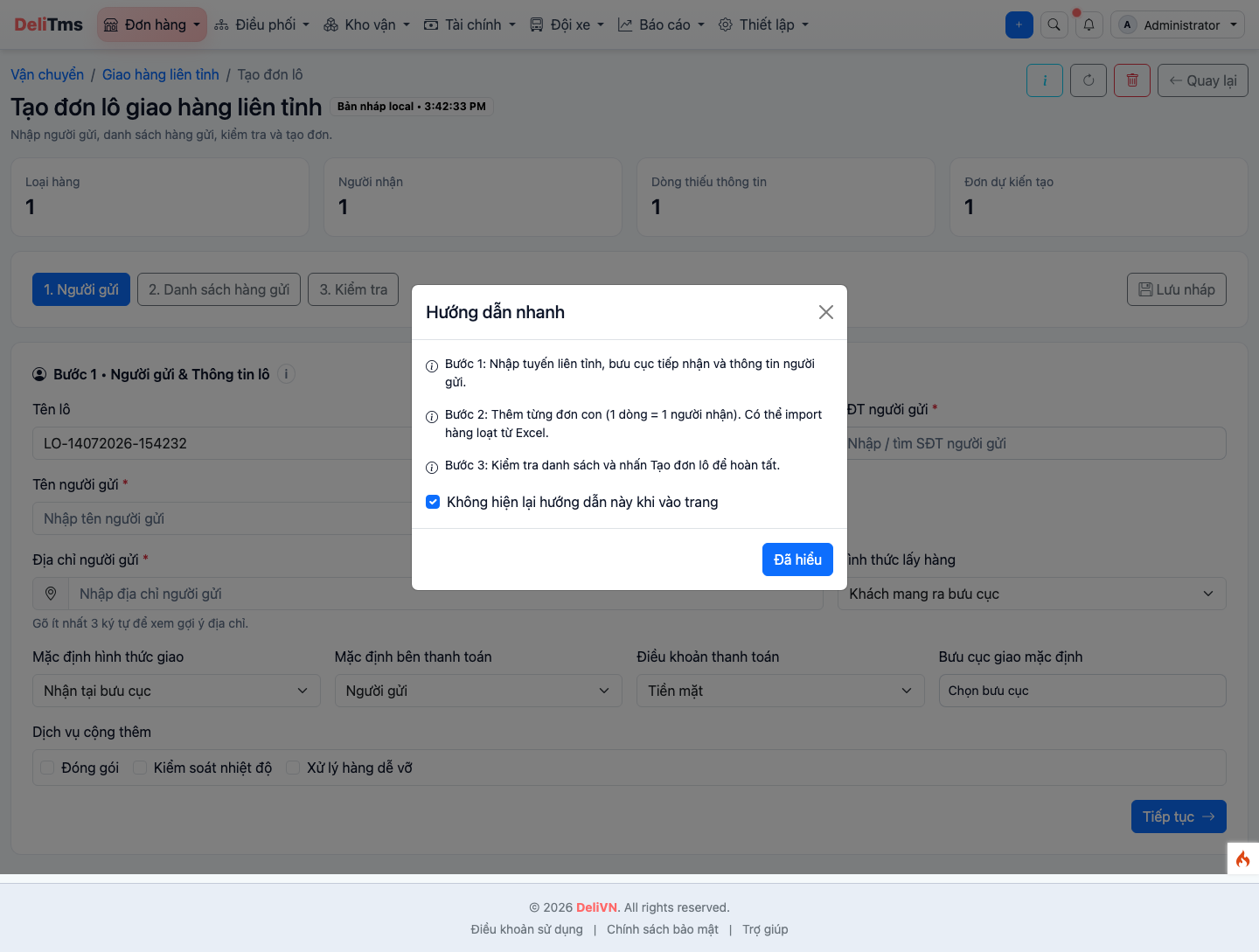
Batch order creation — 3 steps: sender, Excel-style shipment table, verification before bulk creation.
- Step 1 — Sender & Batch Information: receiving post office auto-locked to current work location (if any); declare sender (common for entire batch); enable Door-to-door pickup if needed — shows additional expected pickup time, notes and ID/phone verification switches identical to individual orders; set defaults for delivery method/payer — applies to all rows, can be edited individually in next step.
- Step 2 — Shipment List: enter Excel-style table, one row per recipient (name, phone, address, goods type, quantity, COD, notes) — add rows with button or Ctrl+Enter, navigate with arrow keys; or Import Excel to paste multiple rows quickly.
- Step 3 — Verification: each recipient gets a 2-column card — left column shows information/delivery options, right column shows complete estimated freight (main freight, pickup/delivery fees, surcharges, additional services, COD, insurance, VAT, total) calculated through the same estimation tool as individual orders; delivery post office is automatically suggested by distance to recipient address (if coordinates available) but can be changed. Delivery address is finalized in step 2, cannot be edited here.
Each recipient (by phone + address) generates one independent order — after creation, each order goes through the same lifecycle as individually created orders (confirm goods → label packages → transfer to operations in sections 3–5 below); batch table doesn't collect weight (KG) so freight in step 3 is only estimated, exact amount finalized when weighing actual goods during goods confirmation.
3. Confirming Goods
When actual goods arrive at counter (customer brings in, or pickup trip delivers), open order details → Confirm Goods:
- Verify each item against declaration: re-weigh, re-measure if needed — edit directly on confirmation screen, freight automatically recalculated;
- Finalize actual number of packed packages (one item can be split into multiple packages);
- Save — system generates unique package code for each package.
For door-to-door pickup orders, packages already collected are pre-created from the pickup trip; confirmation screen displays those exact packages. In case of incomplete collection (customer hasn't prepared everything), the shortage is recorded — can be supplemented in next round or order can be adjusted.
4. Labeling Packages
Order details → Print Labels: one label per package containing barcode, route, destination post office. Label is the package's "passport": loading, unloading, warehouse processing, delivery all scan this code — unlabeled packages cannot proceed to subsequent steps. Proper package labeling ensures accurate tracking throughout the shipment journey.
5. Transfer to Operations and Payment Method
The Transfer to Operations action on order details requires finalizing payment obligation:
| Method | Condition | Process |
|---|---|---|
| Cash collection at counter | — | Enter collected amount; order becomes "paid"; money goes into counter's deposit slip (chapter 07) |
| Record sender's payable | Sender has active payable account with remaining credit limit | Freight recorded in payable account, collected periodically; order becomes "on credit" |
| Recipient pays | Selected during order creation | No collection at sending end; system blocks delivery completion at receiving end until full payment collected |
Immediately upon transfer to operations, order enters automatic routing queue — typically assigned to the next available departure time slot still accepting shipments (chapter 04).
Sending post office can also finalize sender's payable for "recipient pays" orders (when both parties agree) — system assigns obligation to sender and records in corresponding payable account.
6. Order Tracking and Status Lifecycle
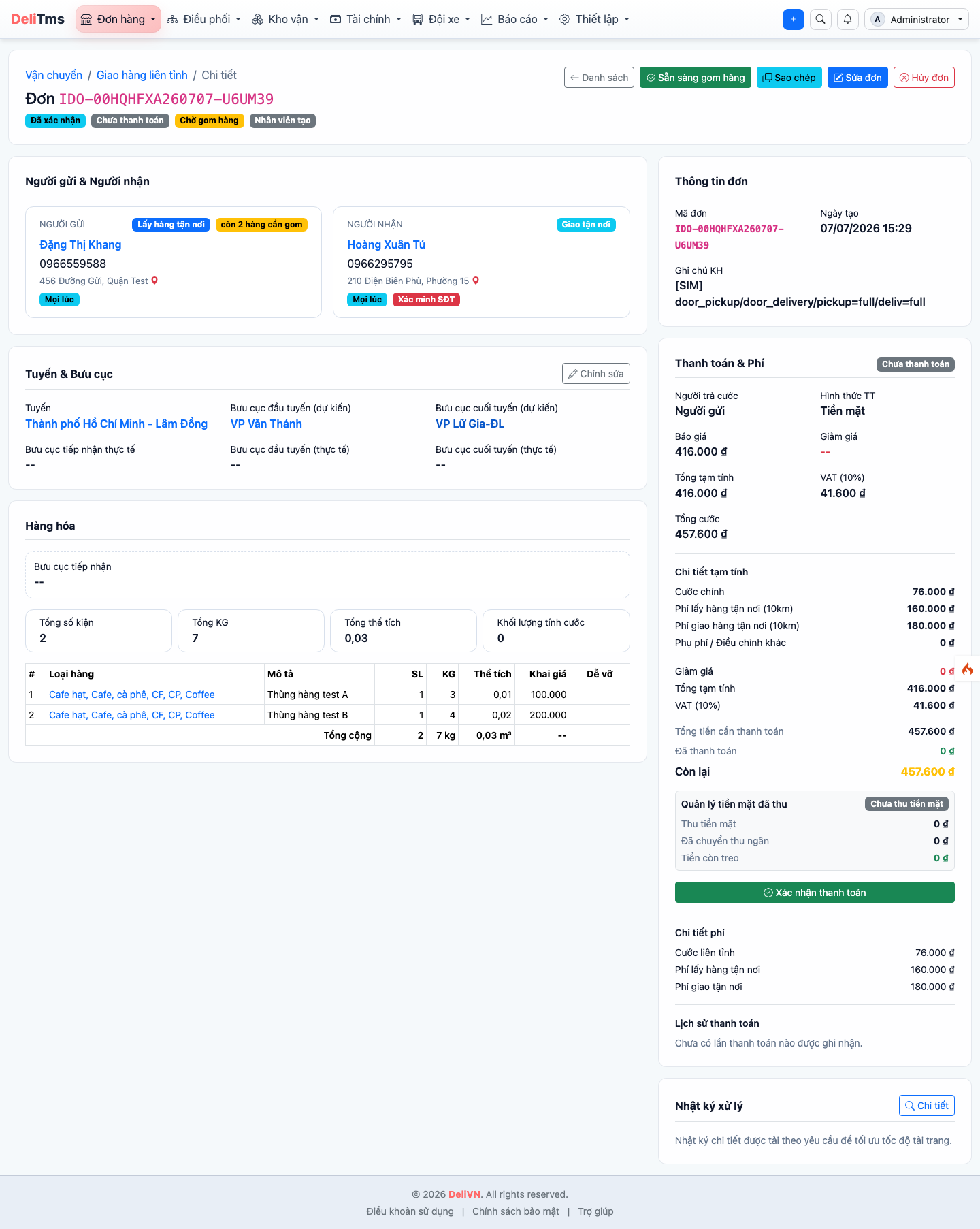
Order details — transport progress, package list, action history and payment documents on one screen.
| Phase | Status | Meaning |
|---|---|---|
| Reception | Awaiting goods confirmation | Order created, packages not finalized |
| At sending post office | Packages finalized, not transferred to operations | |
| Awaiting routing | Ready for transport | Waiting to be grouped into trip according to departure schedule |
| Transport | Trip assigned | Trip assigned, awaiting departure |
| In transit | Goods en route | |
| Awaiting transfer | Arrived at intermediate hub, awaiting next leg (multi-leg journey) | |
| Receiving end | At receiving post office | Goods arrived at destination |
| Awaiting customer pickup | Goods in waiting area / holding warehouse, waiting for recipient to collect | |
| Out for delivery | Assigned to door-to-door delivery trip | |
| Completion | Delivered | Delivery successful, collection obligation completed |
| Cancelled | Cancelled before transport (with refund if payment collected) | |
| Returned | Returned to sender after failed delivery (chapter 04, section 6) |
For orders not under contract, immediately when order becomes "paid" and company has enabled e-invoicing (chapter 10), order details show additional e-invoice status panel: awaiting processing / processing / issued (with invoice number + PDF view link, "Resend email" button) / failed (with error reason from provider and "Reissue" button). Contract orders don't show this panel — invoices issued according to contract payable invoices (chapter 07).
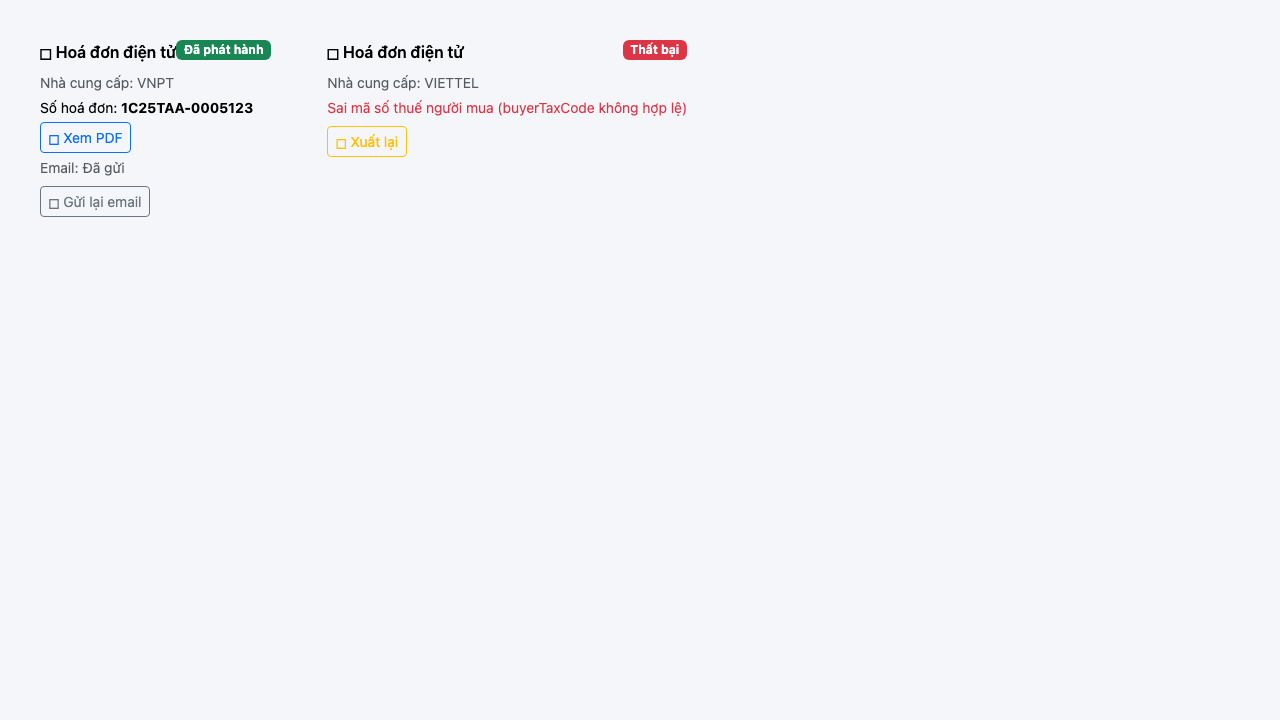
E-invoice status panel — "issued" status (left) and "failed" status (right).
7. Adjustment Operations
- Cancel order: allowed until before order is assigned to trip; if payment collected, system records refund operation;
- Change recipient: update on order details; unchanged information (such as delivery method) is retained; payment obligation and payable account transfer to new recipient if relevant;
- Change route / destination: system rebuilds journey and recalculates freight difference;
- Adjust after confirmation: requires appropriate permissions; all changes logged in order history.
Customer Profiles
Operations → Customers (/customer/customer): customer profiles automatically generated from orders (identified by phone number) or created proactively. On profile: contact information, order history, payable account (chapter 07), and target for attaching custom price lists (chapter 02). Corporate customers with long-term agreements managed with Contracts (/contract) and Documents (/customer/document).
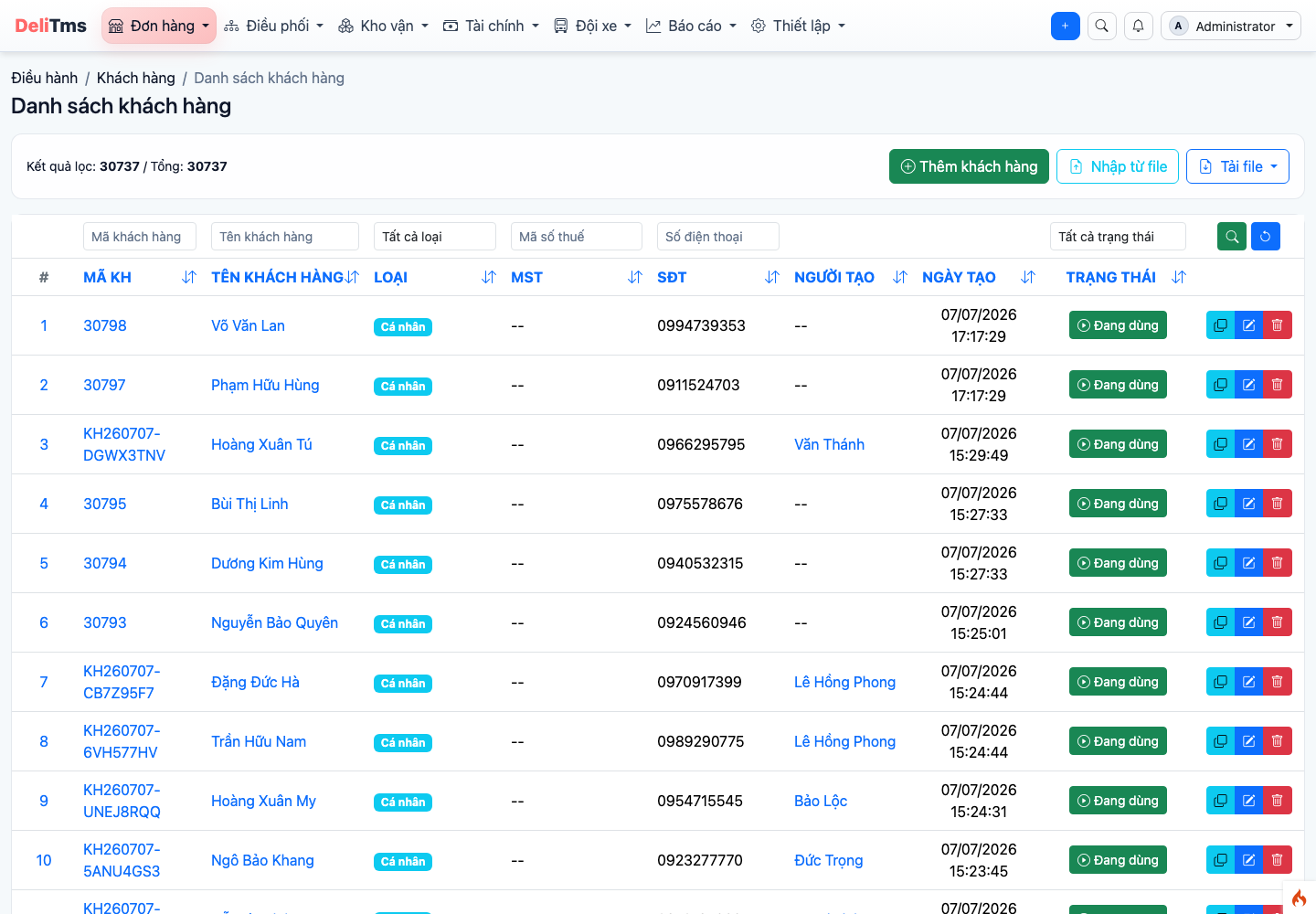
Customer list — profiles auto-generated from orders, identified by phone number.
E-Invoice Issuance Profiles
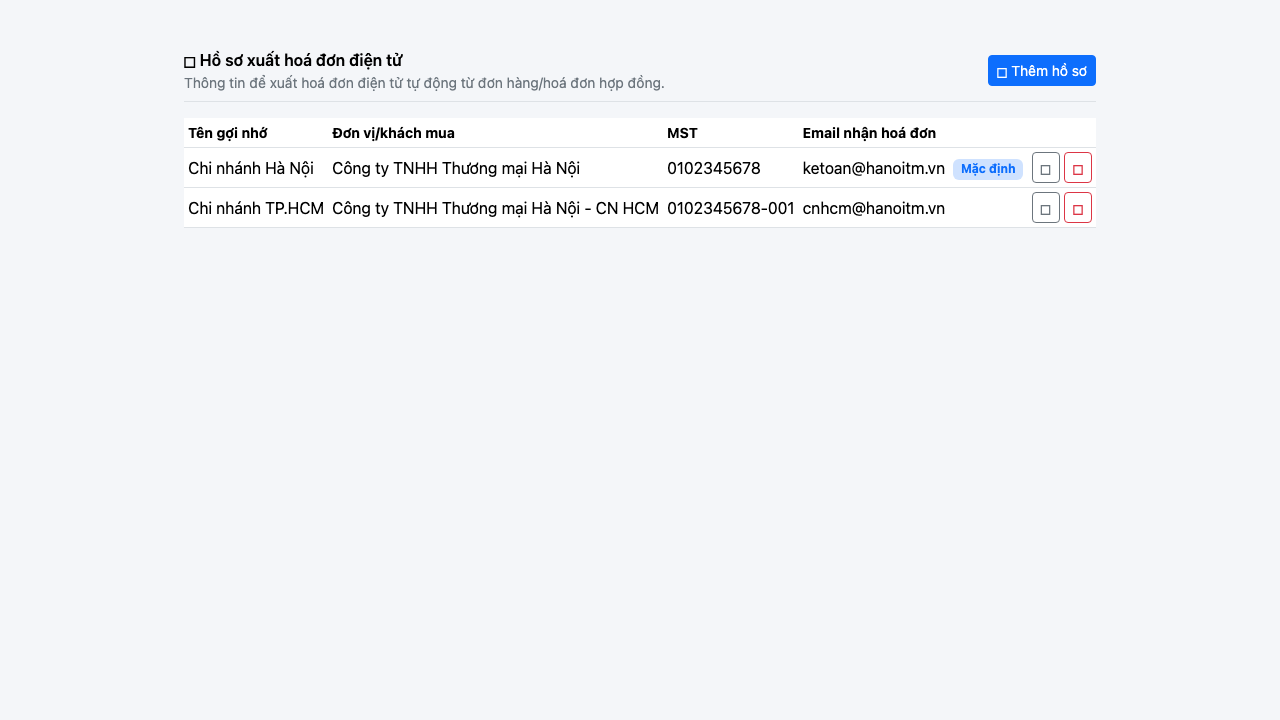
Customer details — "E-invoice issuance profiles" panel: multiple tax ID/branch profiles for one customer.
On customer details, the "E-invoice issuance profiles" panel manages customer's invoice issuance information sets — necessary when one customer has multiple tax IDs or multiple branches wanting separate invoices. Each profile includes: memorable name, buyer type (company/individual), company/buyer name, tax ID, address, invoice email, phone number, and set as default profile flag. Add Profile to create new, pencil icon to edit, trash icon to delete. When system automatically issues e-invoices for customer's orders/contract invoices, the default profile is used to fill buyer information and invoice email destination.
8. Frequently Asked Questions
Order creation reports "Price list not configured"? — No price list matches the order's goods type/route/customer. Check default price list (chapter 02, general section).
Transfer to operations reports "Customer doesn't have active payable account"? — Selected record payable but customer doesn't have account opened. Open account at Customers → Payables (chapter 07) then retry operation, or switch to cash collection.
Order stuck at "Ready for transport" for long time? — Check routing alerts: may have passed today's departure time slots (order will automatically go on tomorrow's first slot) or vehicle shortage (chapter 04, section 1).
How does freight calculation work? — The system performs automatic freight calculation based on goods type, weight (actual or volumetric), route, and applicable price list, with all components displayed in the estimated freight block.
What happens during order processing? — Order processing flows through the four counter steps: create order, confirm goods, label packages, and transfer to operations, with each step updating the order status and triggering subsequent workflow actions.