1. Installation and Login
The driver application runs on mobile browsers (PWA) at the address provided by DeliTMS — select "Add to Home Screen" to use it as an installed application, supporting both Android and iOS. Log in with company code + phone number + password (phone number registered in the driver directory — chapter 01; password provided by the company).
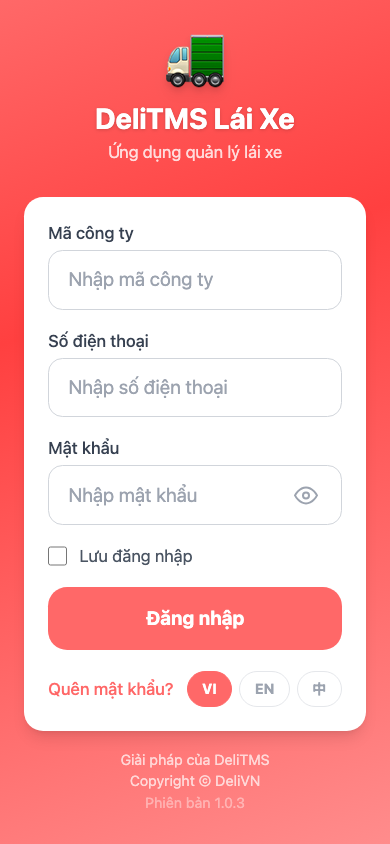
Login with company code, phone number and password.
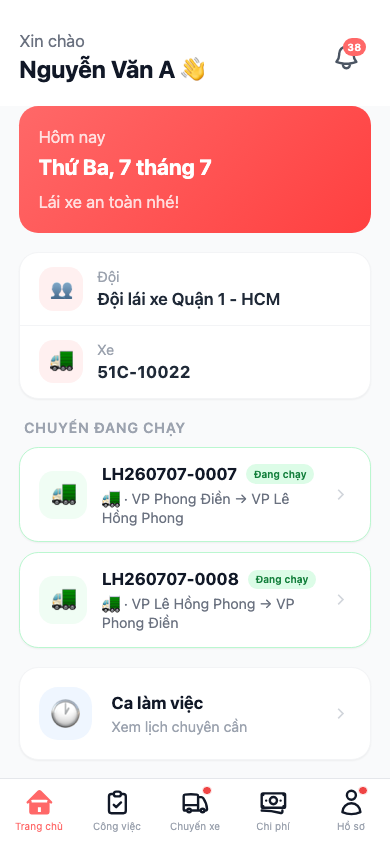
Home page: assigned vehicle, upcoming trips, performance metrics.
2. Receiving Trips and Operations
Assigned trips appear in the Trips section with push notifications. Each trip type has its own sequence, the app guides step-by-step — operations cannot be skipped:
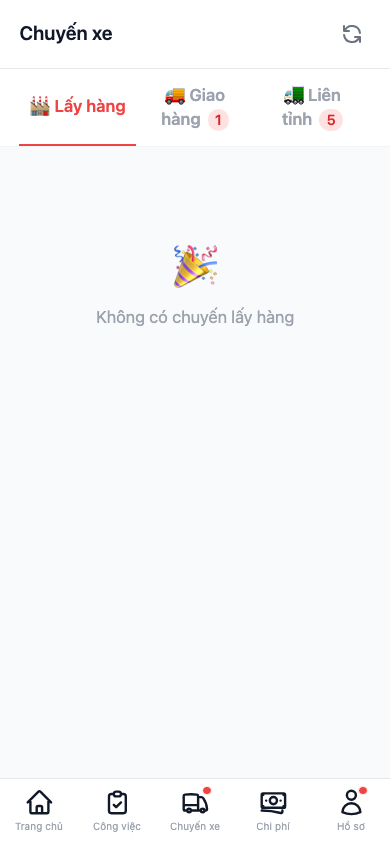
Driver's trip list — status and route of each trip.
2.1 Pickup Trip: Start trip → at each point: Arrived → In Service → confirm collection result (complete / missing — select missing items / failed — select reason) with photos → all points completed: Return to Hub and hand over goods to the counter.
2.2 Inter-province Trip:
- Before departure: complete vehicle safety checklist, take vehicle photos — condition for loading;
- Loading: scan parcel codes with camera or enter code; system immediately alerts if parcel doesn't belong to the trip; parcel not found → create shortage report directly in the app; when fully loaded, trip automatically records departure;
- At each station: Arrived → scan and unload parcels at the station (app only allows unloading parcels destined for this location) → hand over to warehouse staff; station with no tasks: "No tasks, continue";
- Final station: after unloading, trip completed — trip income displays immediately in the Income section.
2.3 Delivery Trip: at each delivery point — Arrived → Deliver: take confirmation photo, collect freight charges (if recipient pays freight) and collect COD according to the amount shown by the system; delivery failed → select reason, system schedules redelivery or initiates return process (chapter 04, section 5).
The freight and COD amounts are always separated in the app and generate two separate deposit slips — driver submits money to the company according to slips, accounting confirms on portal (chapter 07).
3. Income Tracking
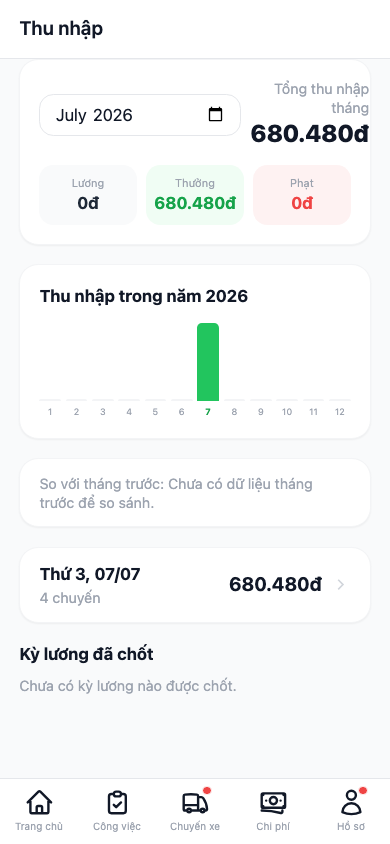
Driver's income — monthly total, annual chart, detailed breakdown by trip.
Menu Profile → Income: current month's total income, 12-month chart, comparison with previous month, list of each amount from each trip with explanation of calculation according to company salary policy (chapter 08). Income appears immediately when trip is completed — drivers can reconcile themselves without waiting for payroll period.
4. Support Functions
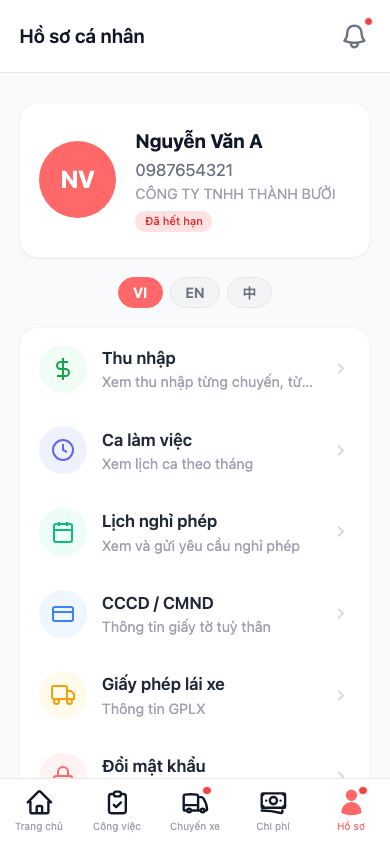
Profile page — access to Income, work shifts, leave requests and personal information.
| Function | Content |
|---|---|
| Work Shifts | View shift schedule; clock in/out of shift (with time limits according to company configuration) |
| Leave Requests | Submit leave request with date range; when approved, system automatically excludes driver from dispatch during leave period — no verbal notice needed |
| Expenses | Record road expenses (fuel, tolls, repairs) with receipt photos, submit to operations department for approval |
| Report Incidents | Shortage/damage reports created directly at loading/unloading steps are sent straight to Incident Center (chapter 09) |
Portal Side: Driver Activity Management
Driver operations performed in the app have corresponding management screens on the portal (Operations menu) for comprehensive trip management:
| Screen | Path | Used For |
|---|---|---|
| Work Shifts | /driver/shifts | Shift assignment, monitor clock in/out |
| Shift Checklist | /driver/shifts-checklist | Configure and approve safety checklist |
| Leave Calendar | /driver/leave-request | Approve leave requests — approved drivers automatically excluded from dispatch |
| Violations | /driver/violation | Record and handle driver violations |
| Tasks | /management/task (+ result approval) | Assign non-trip tasks (document collection, maintenance...) and approve results |
| SOS Reports | /management/sos | Receive emergency signals sent by drivers from the app |
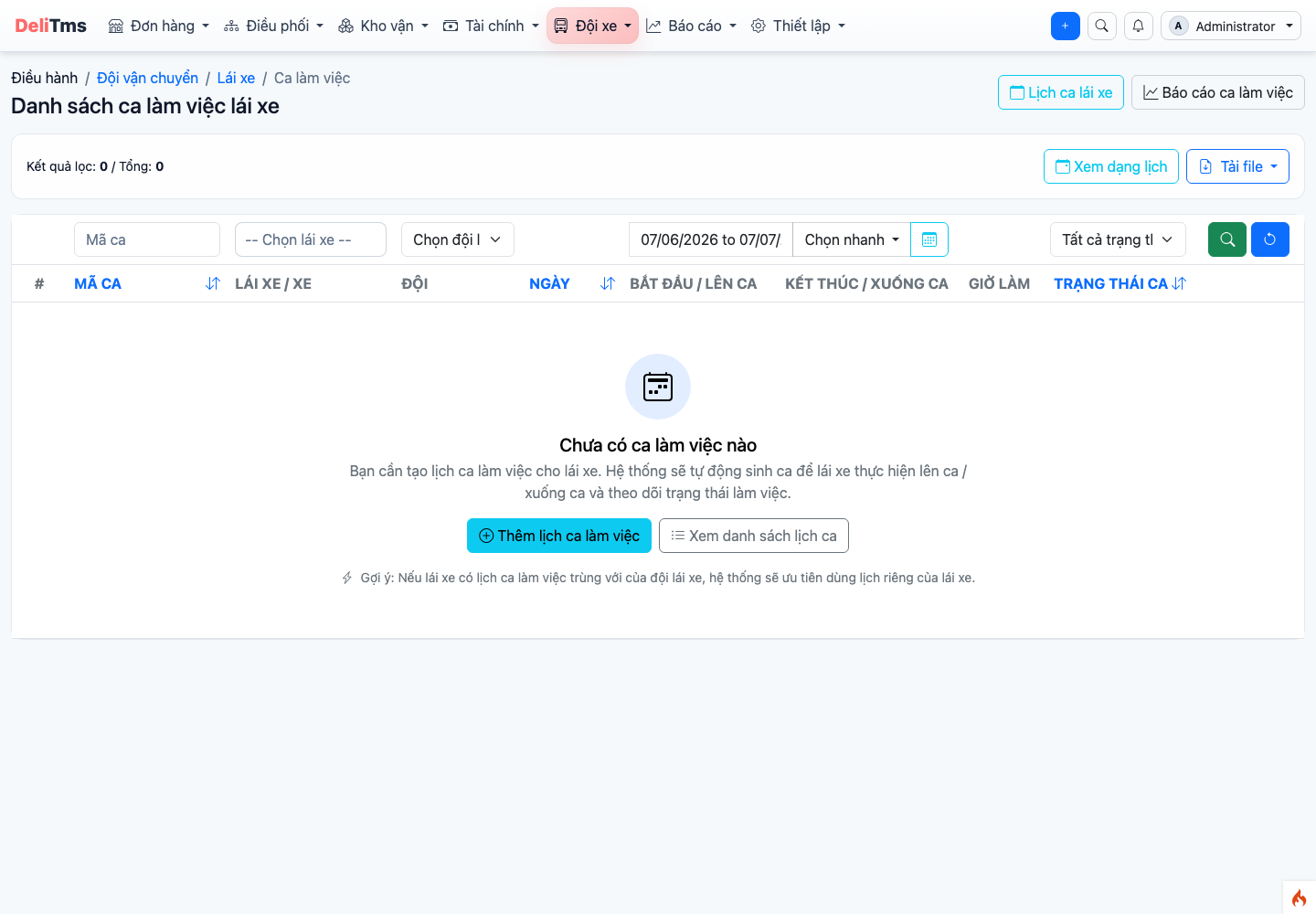
Work shifts — shift assignment and attendance monitoring.
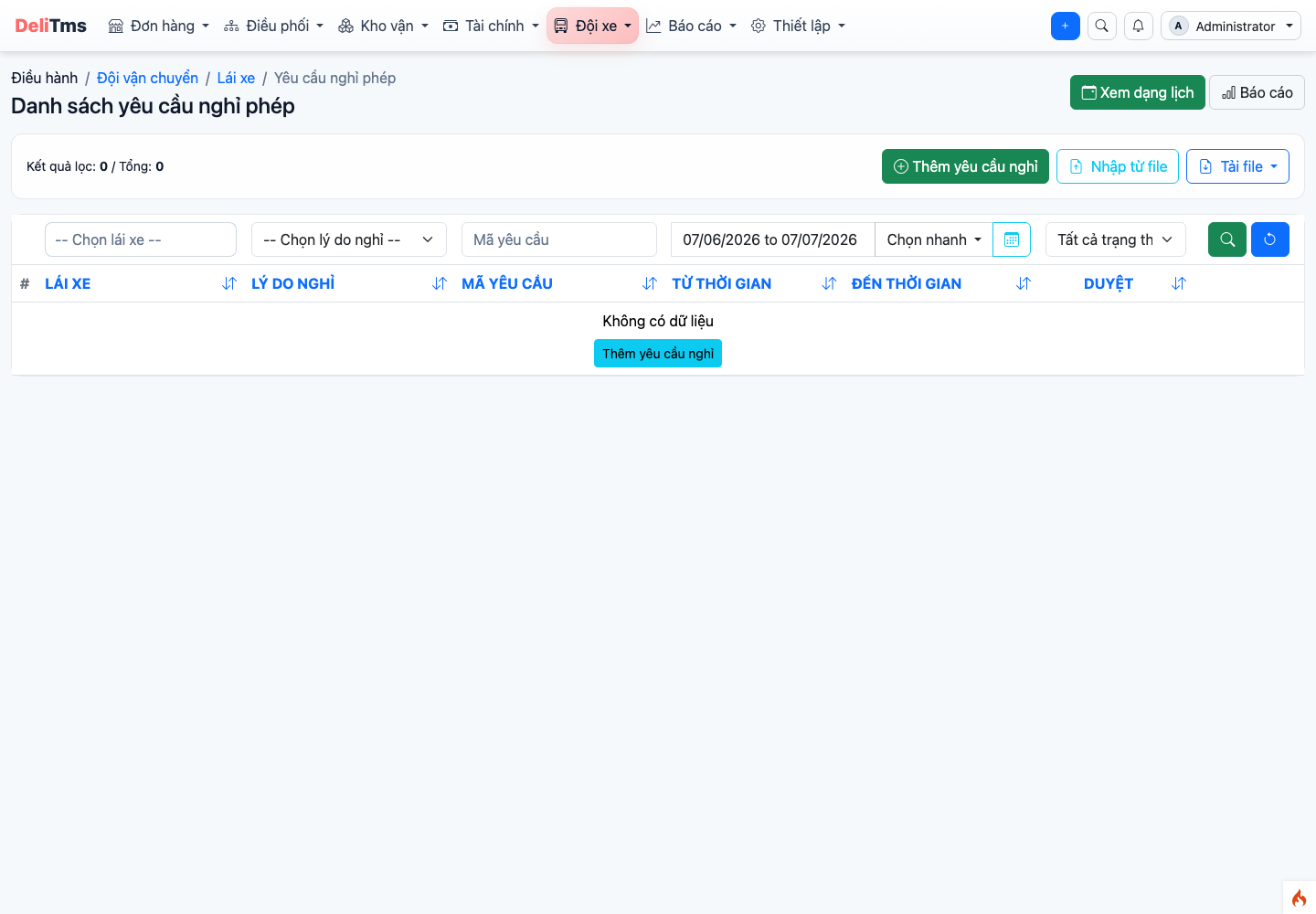
Leave calendar — approve requests; approved drivers automatically excluded from dispatch during leave period.
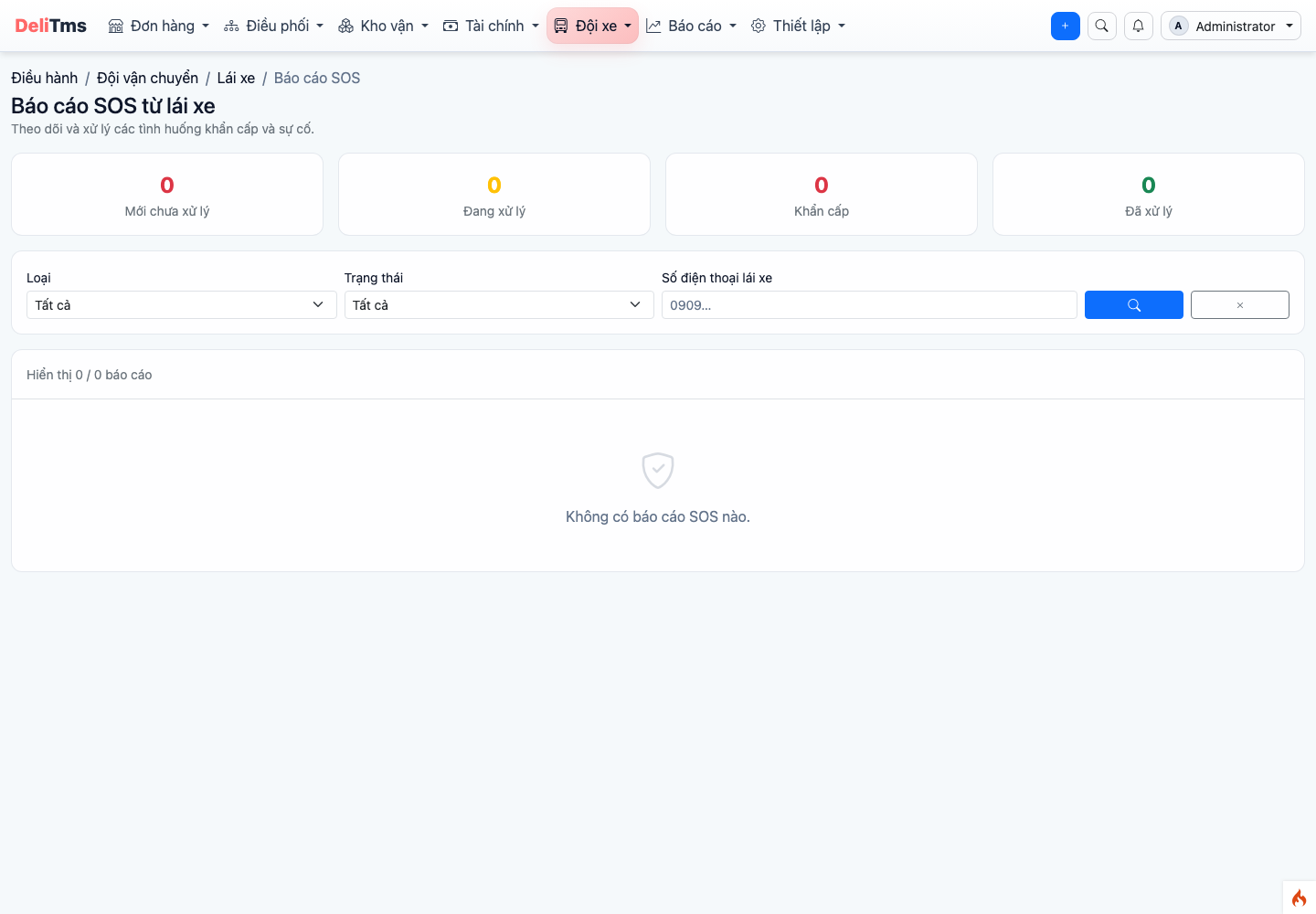
SOS reports — emergency signals from driver app.
5. Frequently Asked Questions
Can't log in? — Check company code; driver account must be active and approved in the driver directory.
Don't see the trip just assigned? — Pull to refresh the list; if still not visible, confirm with dispatch that the trip is assigned to the correct driver (trip assigned to main driver; co-driver views through main driver's trips).
Barcode scanning not working? — Use manual code entry button; check if parcel belongs to the trip (label shows trip/route code).