
This guide consists of 1 general section (this page) and 4 service-specific sections — you only need to read the sections relevant to your business:
[
02a · Interprovincial Price List
Main rate for all orders — REQUIRED. 7 calculation methods + tiered pricing.
](/bai-viet/bang-gia-lien-tinh)[
02b · Pickup Service
Vehicle picks up goods at customer's location — 5 calculation methods, including distance-based.
](/bai-viet/bang-gia-lay-hang)[
02c · Delivery Service
Deliver to recipient's address — match rates based on RECIPIENT.
](/bai-viet/bang-gia-giao-hang)
1. How are order rates calculated?
When staff creates an order, DeliTMS automatically calculates rates on the form. Rates are composed of multiple components, each from a separate price list:
| Component | From Price List | Example (8kg parcel SG→Da Lat, pickup, delivery, 2M COD) |
|---|---|---|
| Main rate SG → Da Lat (8kg) | Interprovincial (02a) | 55,000đ |
| Pickup fee | Pickup service (02b) | 15,000đ |
| Delivery fee | Delivery service (02c) | 20,000đ |
| COD collection fee (1% × 2M, min 10k) | Add-on services (section 4) | 20,000đ |
| Customer pays | 110,000đ |
Important rule: if any price list is missing, that service will show an error "Price list not configured..." and orders cannot be created. Only configure price lists for services you offer. All price lists are located in the Operations → Price Lists & Rates menu.
2. General preparation (one-time setup)
2a. Configure goods types — menu Master Data → Goods Type (/masterdata/goods-type). When starting out, just one "Regular goods" type is sufficient.
2b. Configure weight groups — Master Data → Company Configuration, section Goods Weight Groups. Shared tier framework: creating tiered pricing automatically generates tiers with one action. Example: Extra light 0–3 · Light 3–5 · Medium 5–10 · Heavy 10–(blank).
2c. Volumetric conversion factor (default 5000) — used for light but bulky goods: Billable weight = max(actual weight, length×width×height (cm) ÷ factor). Try it now:
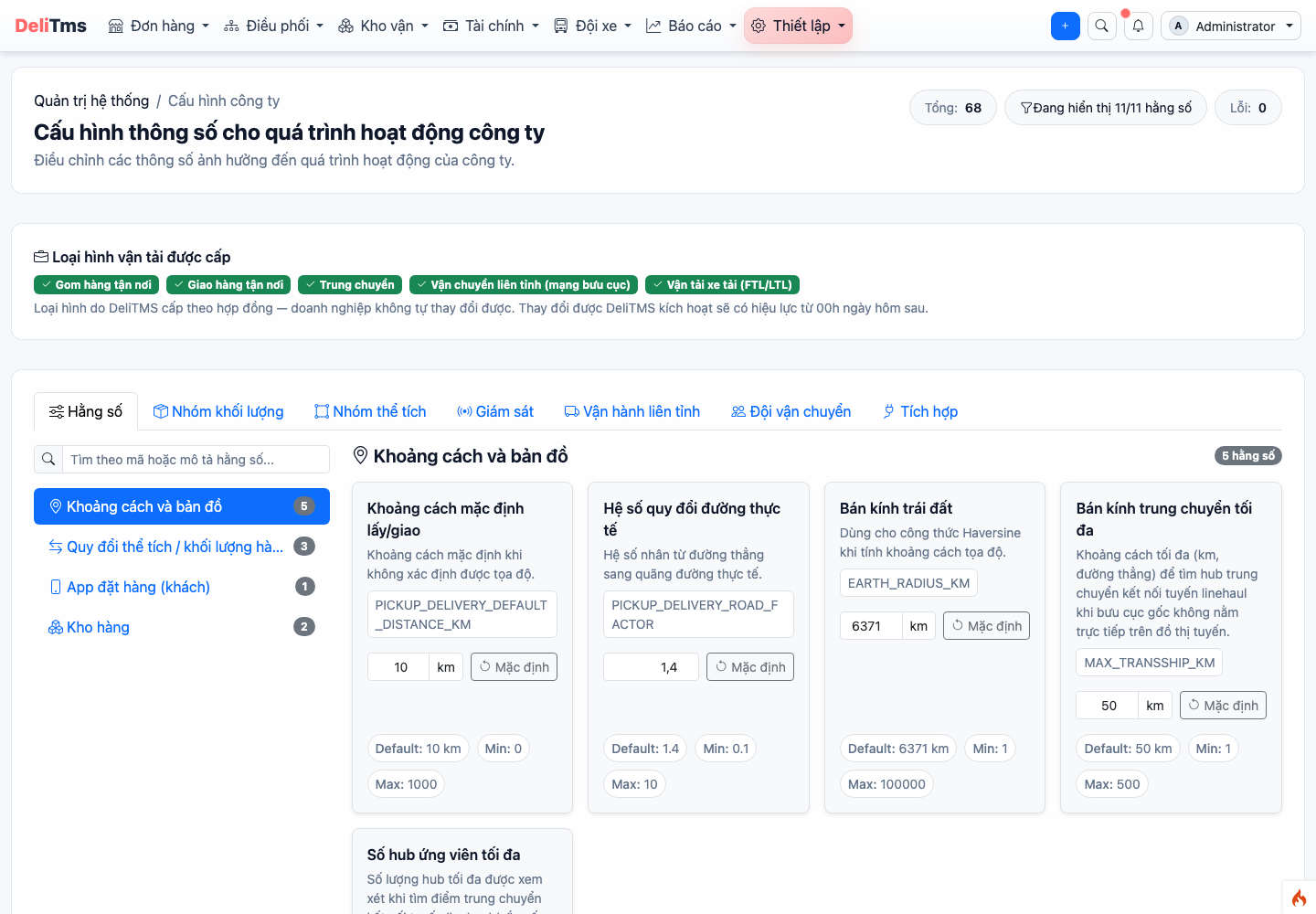
"Company Configuration" screen — where to configure Goods Weight Groups (tier framework) and volumetric conversion factor.
2d. Configure add-on services you offer (COD, insurance, packaging...) — menu Master Data → Add-on Services (/masterdata/service-addon). Proper rate configuration for these add-on services ensures accurate cost calculation for every order.
3. Application scope & priority order — most important section
Each price list can configure 3 scope groups (leave blank = applies to all): Goods Type, Route, Customer.
- A price list is selected only when the order matches all scope groups configured in the price list (within a group, matching one value is sufficient).
- When multiple price lists match, the system selects in this order: has customer assignment → has goods type assignment → priority level (higher number wins) → default list.
Important principle: always create 1 default price list (all scopes blank, check "Default") first, then create specific rates by route/customer. For interprovincial pricing, this default list acts as your safety net so no order will fail with "no price available", and VIP customers automatically get their specific rates when you add them later.
TRY IT Which price list will this order use? — change customer / goods type / route and see system selection
Sender Company A (VIP customer with contract) Walk-in customer
Goods type Regular goods Cold goods
Route SG → Da Lat SG → Nha Trang
| Price List | Customer | Goods Type | Route | Priority | Why? |
|---|
4. Add-on services: COD, insurance, packaging...
Where to go: Operations → Price Lists & Rates → Add-on Services (/transport/pricing/service-addon) → Add. Each rate line is linked to 1 service + applicable type. Calculation methods: fixed / per item / per kg / per m³ / per km / per trip / percentage (if percentage is selected, also specify calculation base: main charge, declared value, COD amount, or subtotal).
| Sample Service | Calculation Method | Enter | Min / Max |
|---|---|---|---|
| COD collection | Percentage — base: COD amount | 1 (%) | 10,000 / 100,000 |
| Goods insurance | Percentage — base: declared value | 0.5 (%) | 15,000 / — |
| Fragile packaging | Per item | 5,000 | — |
Two switches to understand correctly: Mandatory = automatically applied to ALL orders, customers cannot remove (consider carefully); Default selected = form auto-checks but can be unchecked. You can configure Free quantity (e.g., first item free).
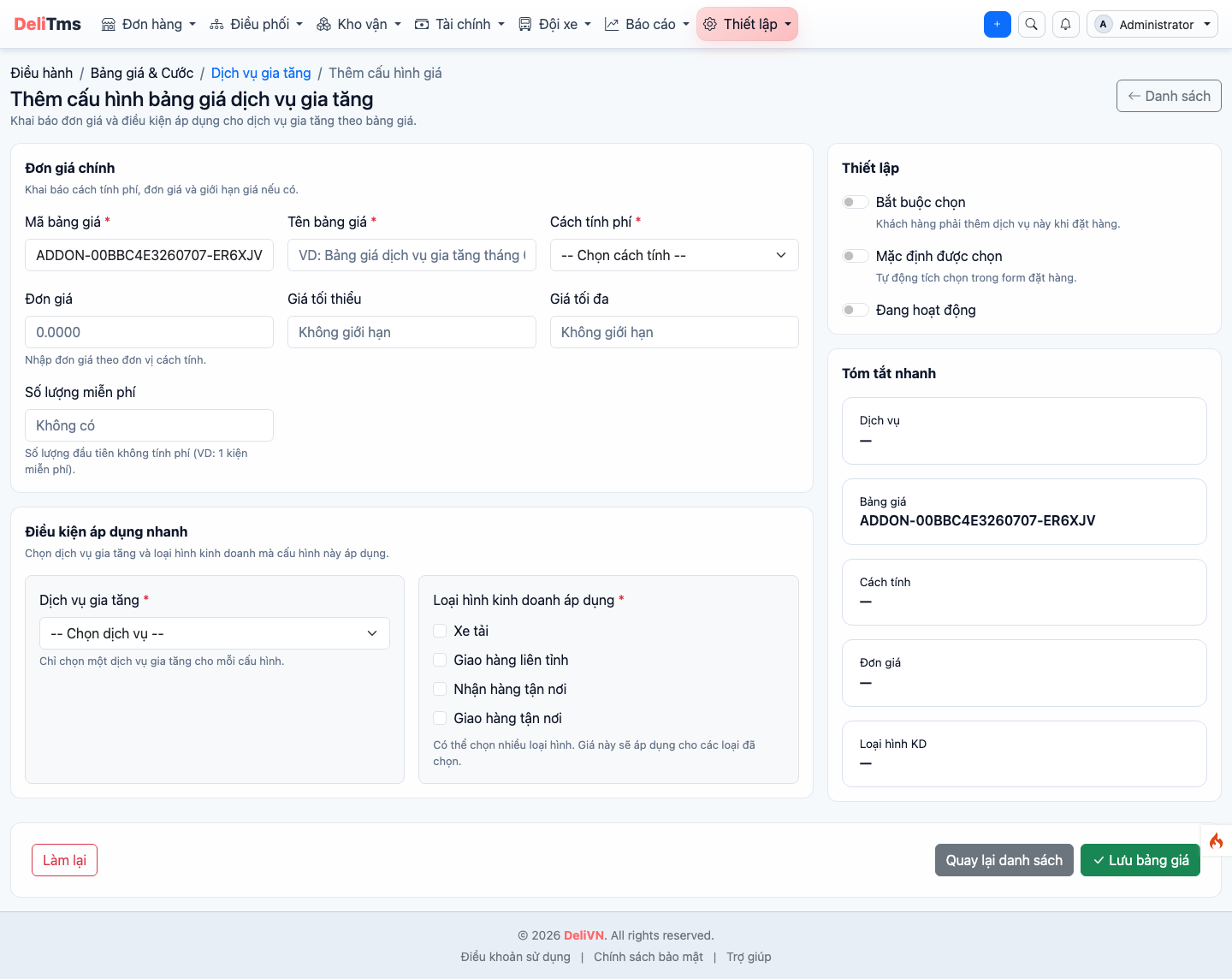
"Add add-on service rate" form on portal — calculation method, percentage base, min/max, two switches: Mandatory / Default selected.
TRY IT Add-on service fee — try COD %, floor/ceiling, first item free
Rate line configuration
Calculation method Percentage Per item Per kg Fixed
Percentage base COD amount Declared value Main charge
Value%
Free itemsfirst item (per item method only)
Minimumđ
Maximumđ
Sample order
COD amountđ
Declared valueđ
Main chargeđ
Item countitems
Weightkg
500k COD (floor 10k) 20M COD (ceiling 100k) 5k/item packaging, first item free
5. Pre-launch testing
Create test orders at Operations → Orders → Create Order and compare system rates with the TRY IT calculators on these pages:
- ☐ Light order / heavy order matches correct interprovincial rate tier (page 02a);
- ☐ Large light box (60×50×50cm, 2kg) → calculated at ~30kg volumetric;
- ☐ Order with COD → correct COD fee added (correct %, floor/ceiling applied);
- ☐ Order with pickup/delivery → correct 02b/02c fees added;
- ☐ Regular order still gets rate after adding VIP customer-specific price list (default list still works).
6. Frequently Asked Questions
Creating order shows "Price list not configured for one or more goods types"?
No price list matches the order. Check that default price list has Active + Default checked, and goods type scope is left blank.
Want to increase prices from next month?
Select Copy existing list → update prices on new copy → on the target date, Activate new list and deactivate old list. Don't edit the currently active list directly — keep old list for reconciling previously created orders.
VIP customer not getting specific rate?
Open the specific price list: check scope has correct customer assigned and list is Active. Try the scenario again in section 3.
Getting strange rate amounts?
Common causes: wrong calculation method (per kg vs per item), wrong billing unit (actual vs volumetric weight), or tier gaps/overlaps — recreate the exact configuration in the TRY IT calculator on page 02a to immediately see where it differs.
Who can edit prices?
Permissions are separated by action: sales staff can only view; pricing department head can add/edit/copy; delete/import only for administrators.