1. System Login
Access the portal address provided by DeliTMS. The login screen requires three pieces of information: Company Code, Email, and Password (provided during account handover). The business owner account has full permissions; employee accounts are created and granted permissions by the business (see chapter 10).
Multi-device login sessions: by default, the system allows one account to maintain multiple concurrent sessions; when logging in on an unfamiliar device, the system may require additional verification (OTP code sent via email or two-factor authentication) to protect the account. Businesses wanting stricter control can disable the "Allow multi-device login" option in Company Configuration → Security section — when this is disabled, each new login will automatically revoke old sessions.
2. Post Office Configuration
Post offices are central operational units: where goods are received, starting/ending points of trips, and the working scope of employees. Go to Master Data → Post Office (/masterdata/post-office) → Add:
- Name, address, coordinates (the system supports address-based search) — coordinates are used to calculate door-to-door pickup/delivery distances and vehicle dispatch;
- Assign post office manager and subordinate employee accounts;
- Set expected unloading time (minutes) if different from default — this parameter is used to calculate when vehicles are ready for the next trip.
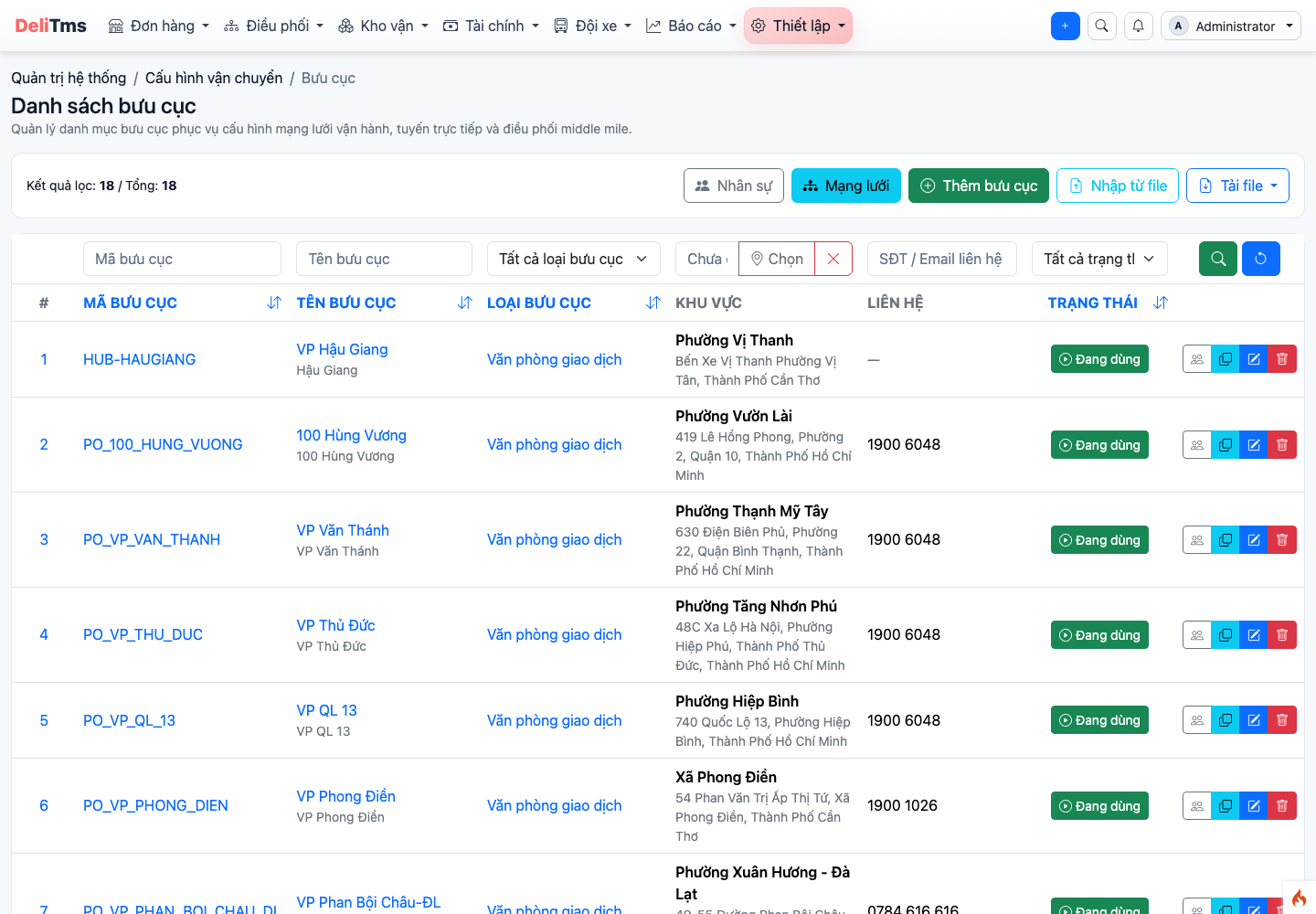
Post office list — the business's operational network.
3. Intercity Service Routes and Departure Schedules
Go to Master Data → Intercity Service Routes (/masterdata/intercity-service-routes). Service routes define the region pairs that the business accepts for shipping; the system uses this to build corridors for each order, including orders requiring transit through multiple segments.
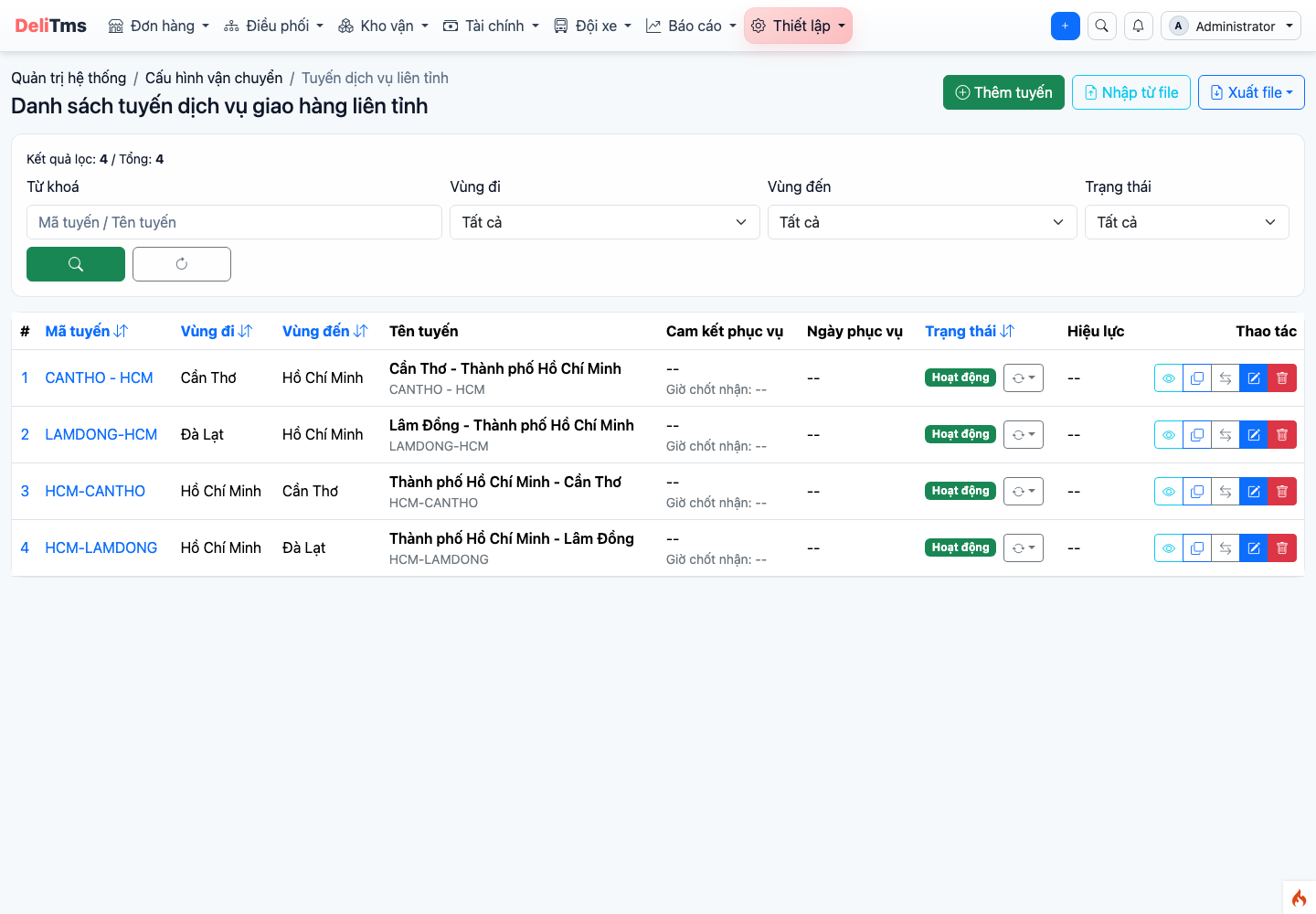
Intercity service route list.
The departure schedule of each operational route (departure time, cut-off time for accepting goods, frequency by day of week, maximum capacity) is the foundation data for automatic dispatch: eligible orders are grouped into trips at appropriate time slots. Configure schedules close to actual capacity — typically 1–2 trips/day per route.
When cargo volume exceeds remaining time slots in the day, the system automatically alerts so dispatchers can decide to open additional trips or accept moving to the next time slot.
4. Personnel
Create employee accounts at System Administration → Accounts, assign working post office and role. Employees assigned to a post office can only operate on data belonging to their post office (orders, warehouse slips, outbound trips). Permission details: chapter 10.
5. Vehicles and Drivers
Vehicles — Fleet → Vehicles (/fleet/vehicle): enter license plate and especially load capacity (kg) and cargo volume (m³) — automatic dispatch uses these two parameters to limit the cargo amount loaded on each trip. Proper vehicle management ensures optimal fleet utilization and streamlined operations.
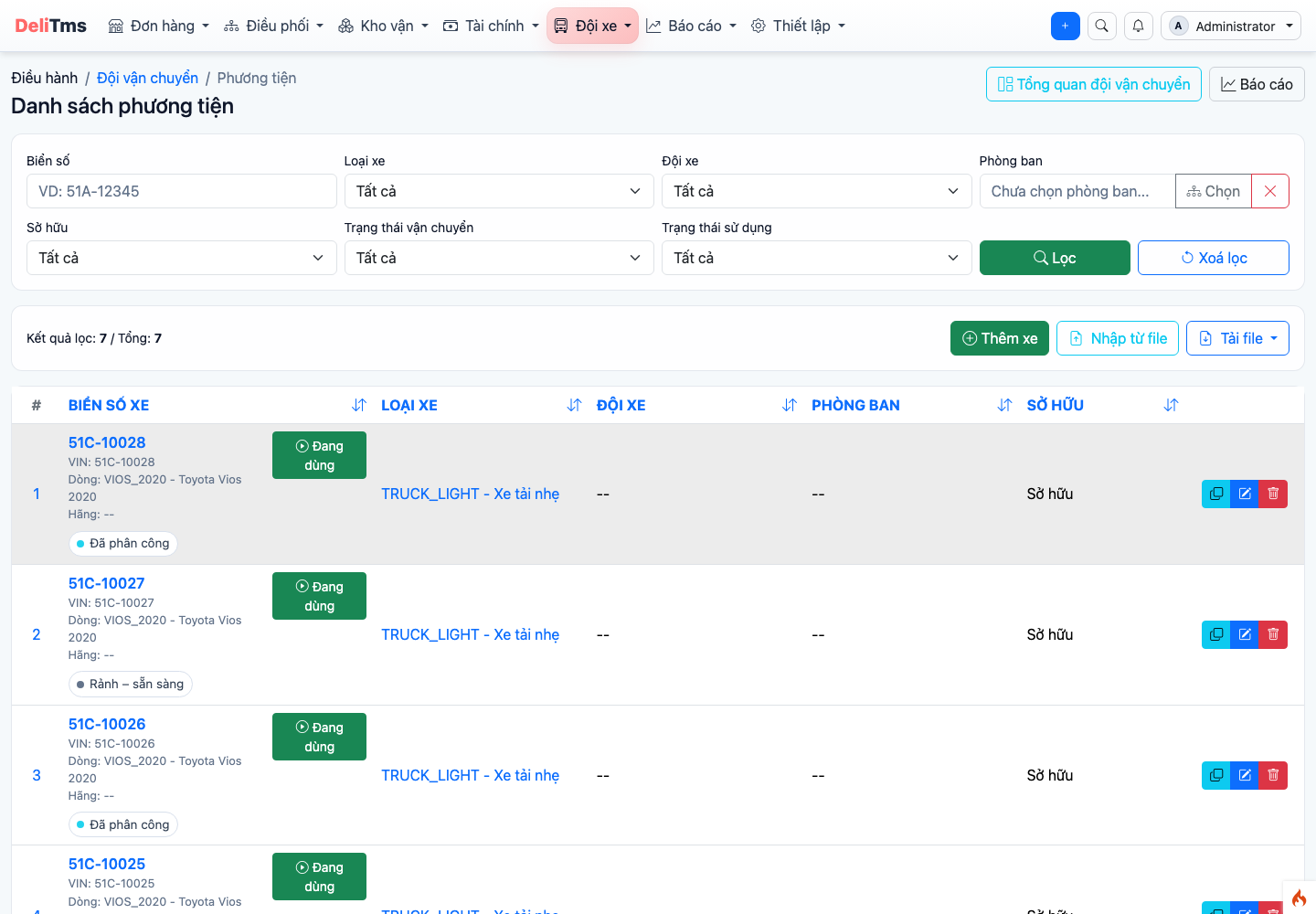
Vehicle list with load capacity and cargo volume.
Drivers — Fleet → Drivers (/driver): the driver's phone number is also the login account for the driver app (chapter 05). It's recommended to set up driver assignment by vehicle: when dispatching, the system prioritizes selecting the person assigned to that vehicle.
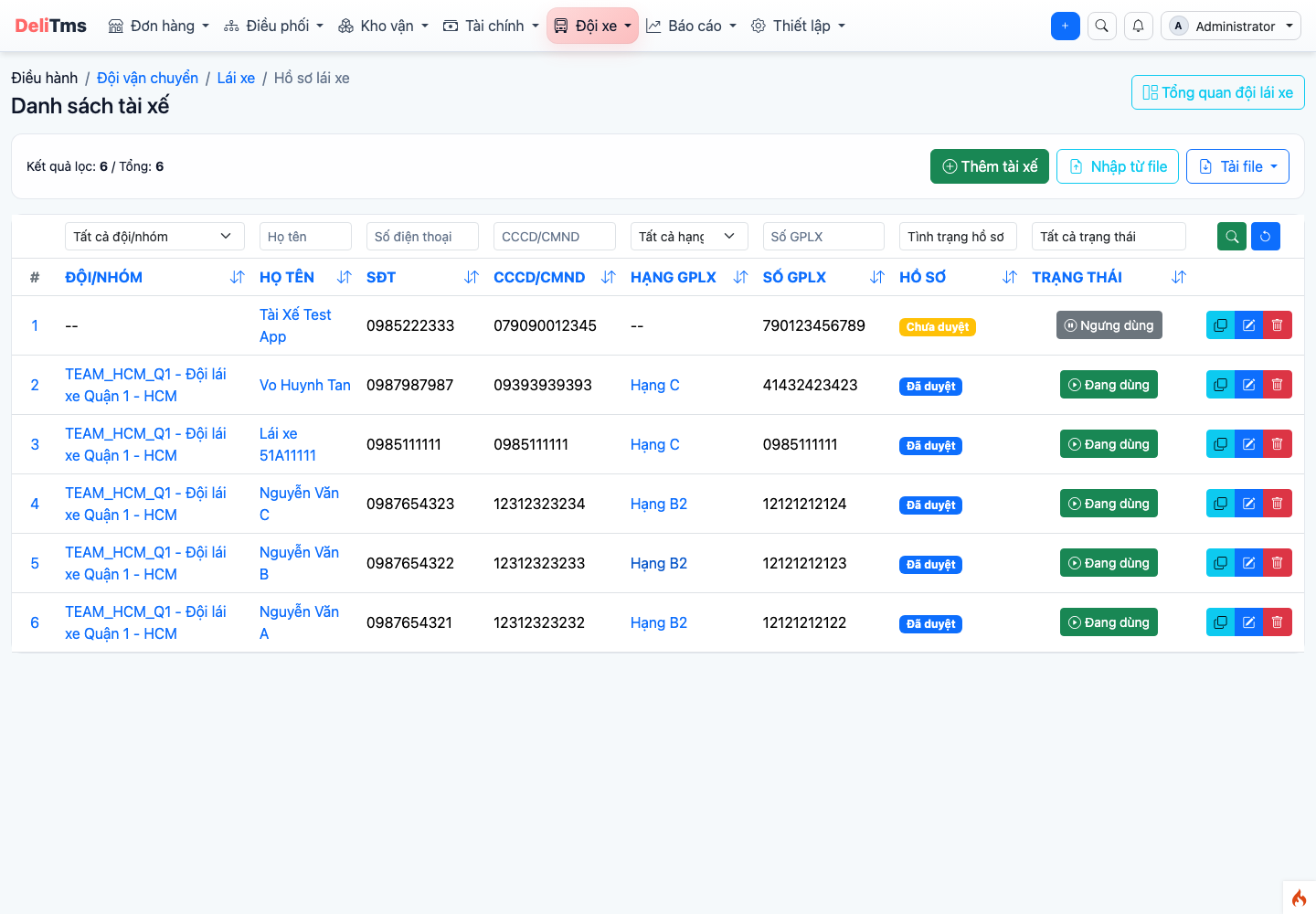
Driver list — phone number is the driver app account.
6. Submitting Feedback and Bug Reports
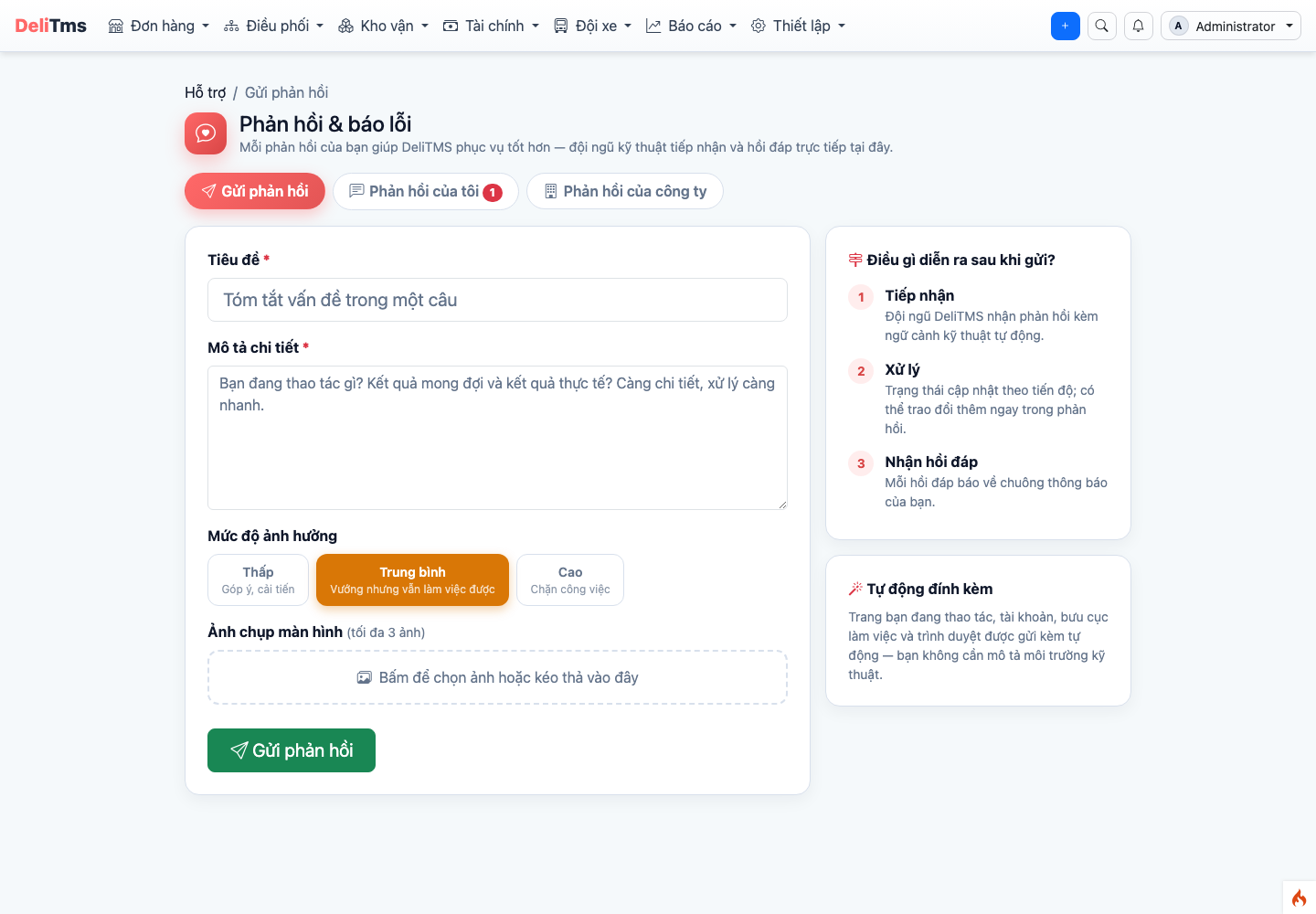
Feedback page — submit bug reports with images, track status and responses from DeliTMS.
When encountering errors or wanting to provide feedback during use, go to account menu → Submit Feedback (/feedback):
- Submit feedback: describe the issue, select impact level, attach up to 3 screenshots. The system automatically records technical context (current page, account, browser) — you don't need to describe the environment.
- My feedback: track processing status (Newly submitted → Received → Processing → Processed) and communicate directly with the DeliTMS team within each feedback. When there's a response, you receive a notification on the notification bell.
- Company feedback (admin accounts only): view all feedback submitted by company employees and processing progress.
Technical system errors (white screen, operations reporting server errors) are automatically collected by DeliTMS — but feedback with context from you always helps resolve issues faster and more accurately.
7. Pre-Operation Checklist
- ☐ Post offices have coordinates and assigned managers;
- ☐ Service routes cover all business region pairs; departure schedules configured;
- ☐ Vehicles have sufficient load capacity/volume; drivers assigned to vehicles and can log into the app;
- ☐ Price list configured and verified (chapter 02).