1. Roles and Permissions
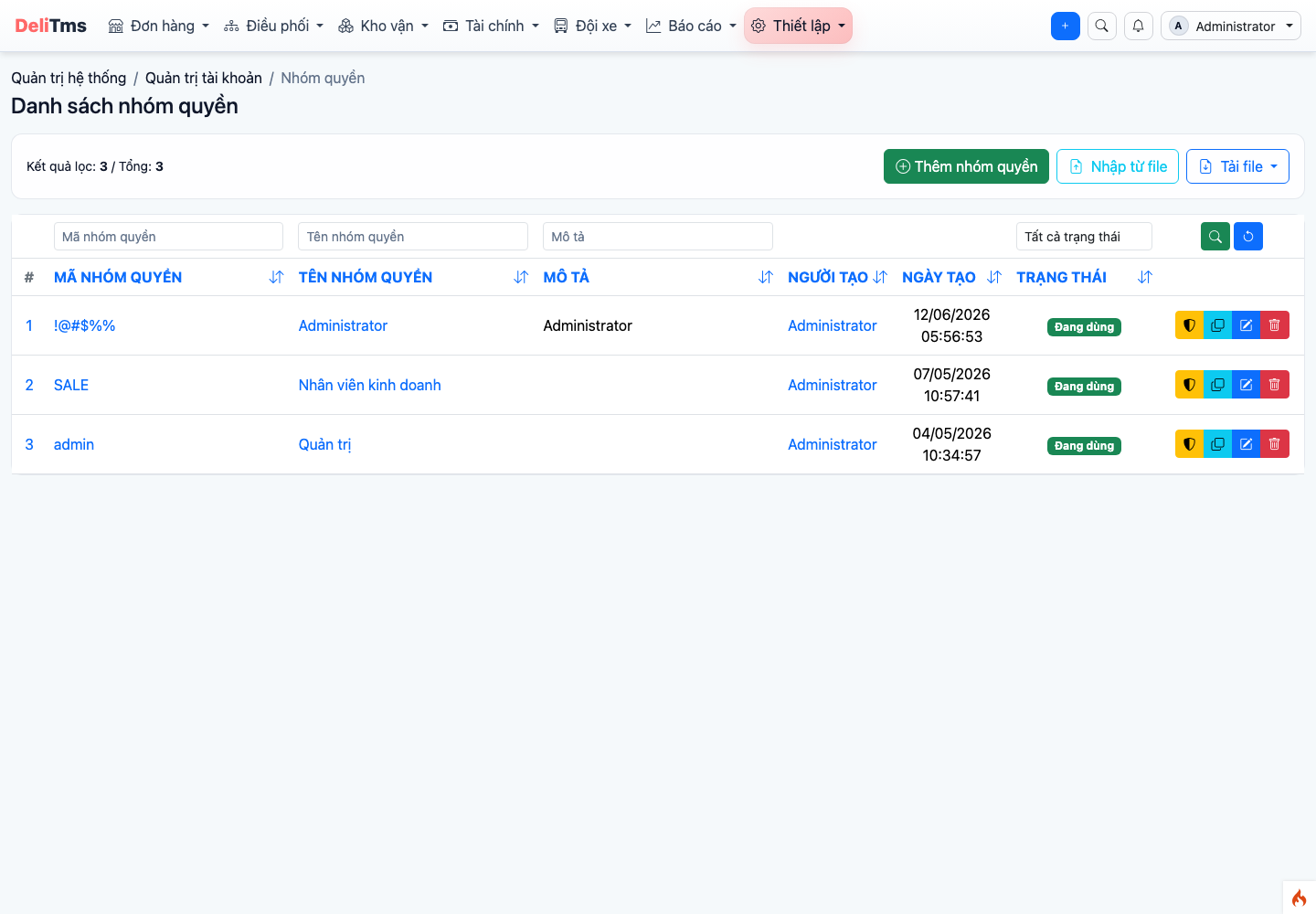
Role management — permissions matrix by module and action.
System Administration → Roles (/account/role). Permissions organized by module × action (view / add / edit / delete / specific business operations such as confirming documents, changing status). Recommended approach:
- Create roles by job title: Post Office Staff, Coordinator, Warehouse Keeper, Accountant, Pricing Department Manager, Administrator;
- Each role should only tick the permission groups serving their work — start narrow, expand when there is actual need;
- Assign roles to accounts when creating personnel (chapter 01, section 4).
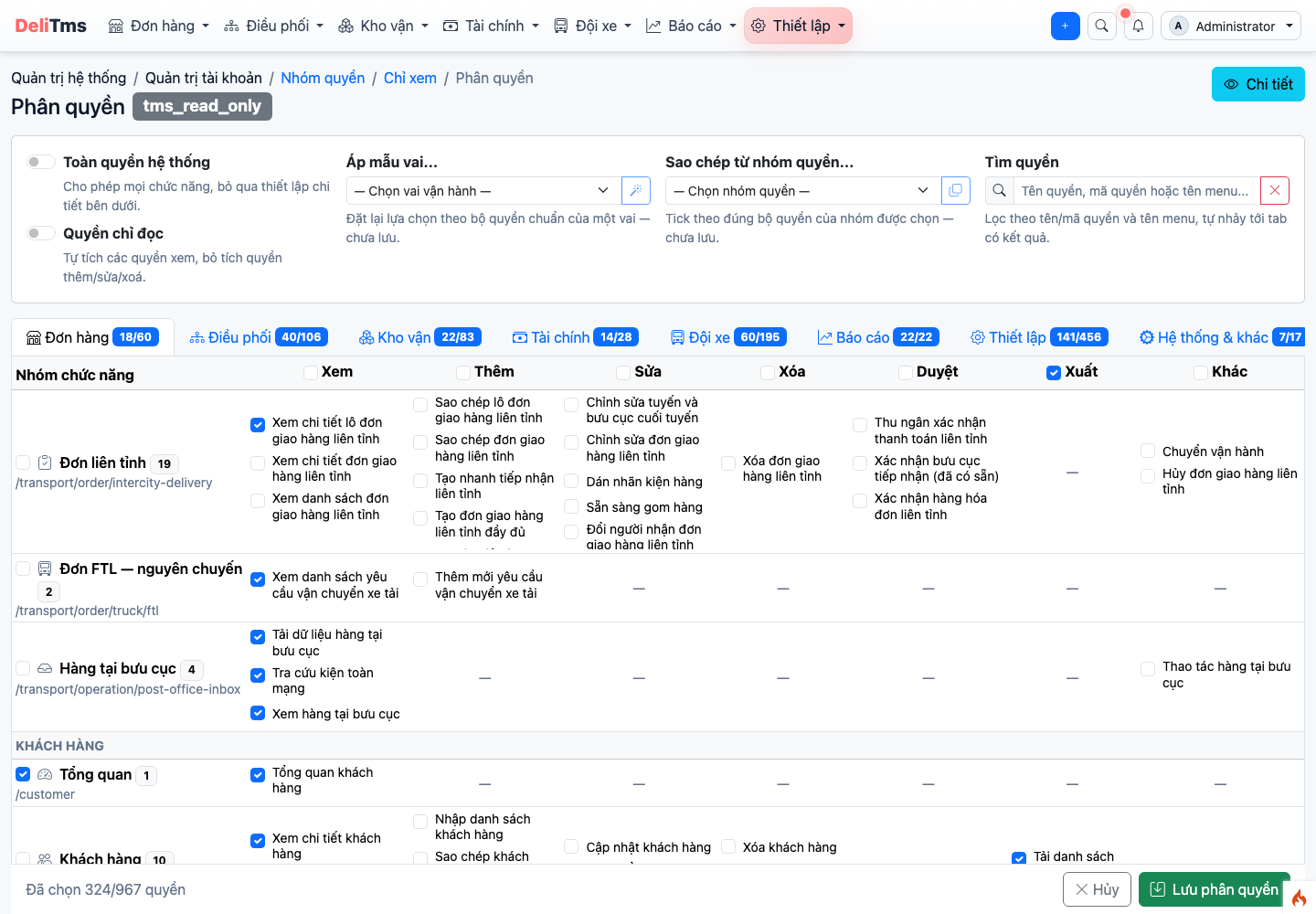
Permissions screen — role template / copy permission group bar at the top, menu tabs and function × action matrix.
The permissions screen is organized in three layers for quick and secure TMS configuration:
- Quick toolbar (top) — Full system permissions / Read-only permissions toggle; Apply role template...: select a standard operational role (Post Office Manager, Counter Staff, Coordinator, Warehouse Operations, Accountant, Fleet Team, Customer Care, View Only) to reset all checkboxes according to the role's standard permission set — not saved yet, cells that differ from the template are outlined in yellow; Copy from permission group...: tick according to the exact permission set of an existing group; Search permissions: filter by permission name/code and menu name, automatically jump to the tab with results.
- Menu tabs — each tab corresponds to a main menu on the navbar (Orders, Coordination, Warehouse, Finance, Fleet, Reports, Settings...), with a counter showing selected / total — at a glance you can see what permission groups are covering.
- Function × action matrix — each row is a function group (with page path that the permission unlocks), columns for View / Add / Edit / Delete / Approve / Export / Other; tick the first cell of a column to select the entire column, tick the first cell of a row to select the entire group. The bottom bar counts total selected permissions — check then click Save permissions.
Principle consistent throughout the system: no permission means no interface displayed — staff cannot see menus/buttons outside their scope. If staff report "cannot see function", the first thing to check is their role.
2. Data Scope by Working Post Office
In parallel with function permissions, accounts assigned to a working post office are limited to data by post office: counter orders, warehouse documents, departure trips, incoming goods. Enterprise owner accounts and accounts not assigned to post offices have network-wide scope. Multi-branch enterprises should assign post offices to all operational staff.
3. Company Configuration
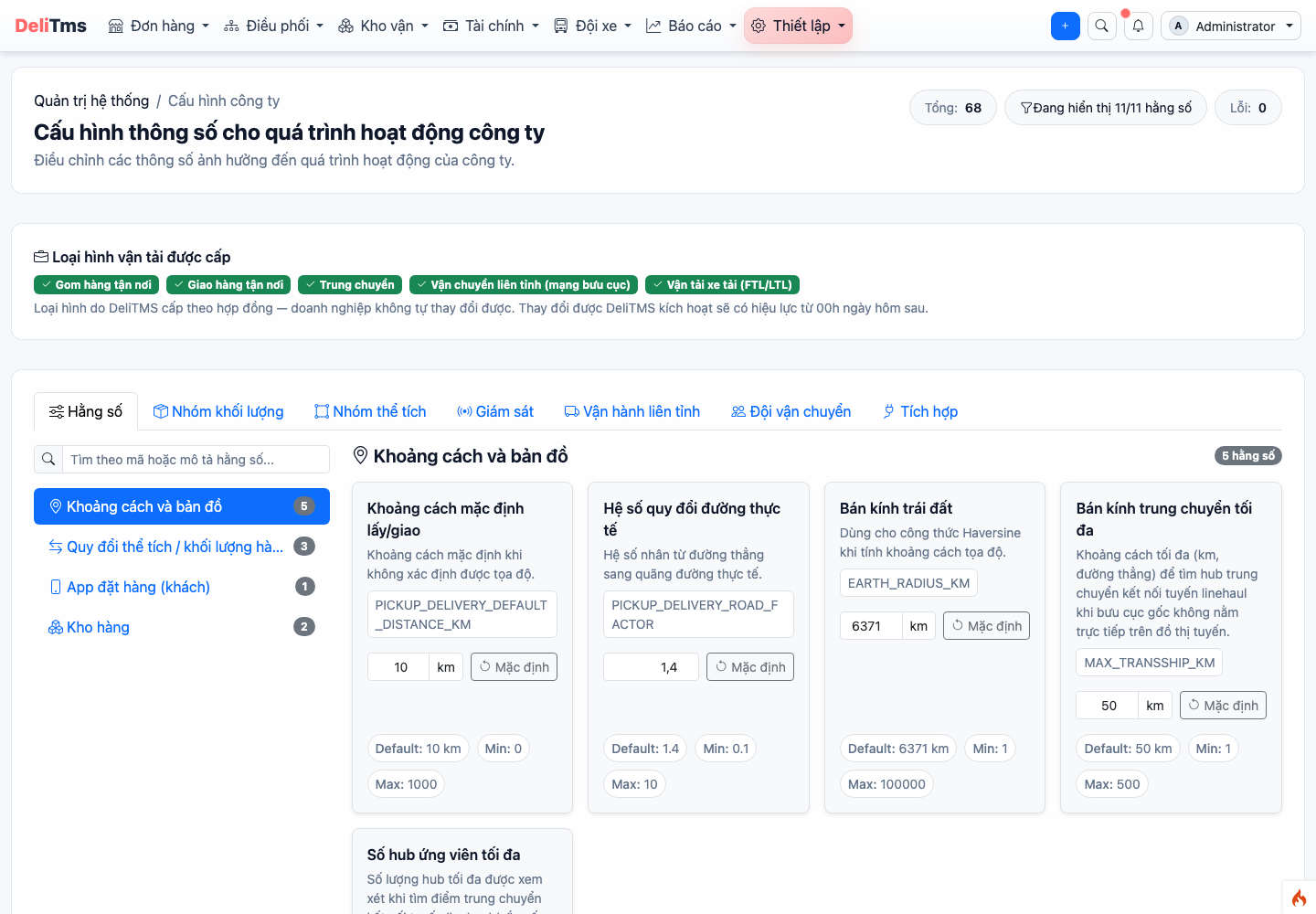
Company configuration — centralized operational parameters by group.
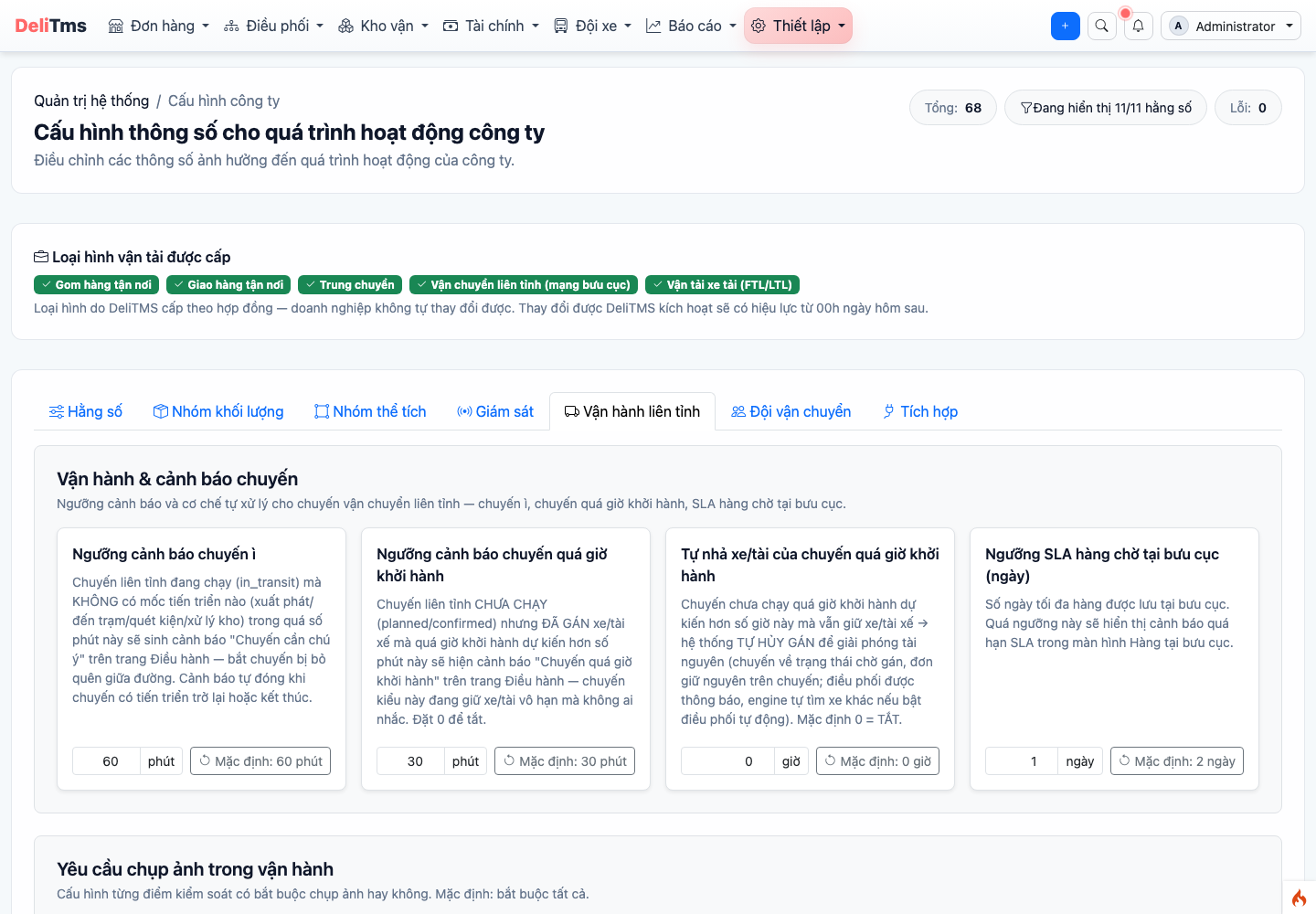
"Inter-provincial operations" tab — "Trip operations & alerts" section: idle trip threshold, trip past departure time, auto-release vehicle/driver and SLA for goods waiting at post office.
Directory → Company Configuration (/masterdata/company-setting) — main parameter groups:
| Group | Typical Parameters | Impact |
|---|---|---|
| Goods & Pricing | Weight groups, volume conversion coefficient | Price table tiers, freight calculation scale (chapter 02) |
| Fleet & Coordination | Expected unloading time; default trip duration when route has no history | Vehicle scheduling, vehicle rotation (chapter 04) |
| Warehouse | SLA threshold for inbound / outbound documents (minutes) | Overdue alerts, SLA Dashboard (chapter 06) |
| Salary | Salary cycle, closing date, assistant ratio, pro-rata rules for fixed salary | Salary period, calculation method (chapter 08) |
| Security | Allow multi-device login (with OTP/2FA verification when logging in from unknown device) | Login session policy (chapter 01) |
| Work Shift | Time limit for shift clock-in/out | Driver attendance (chapter 05) |
Electronic Invoice Integration (VNPT/Viettel)
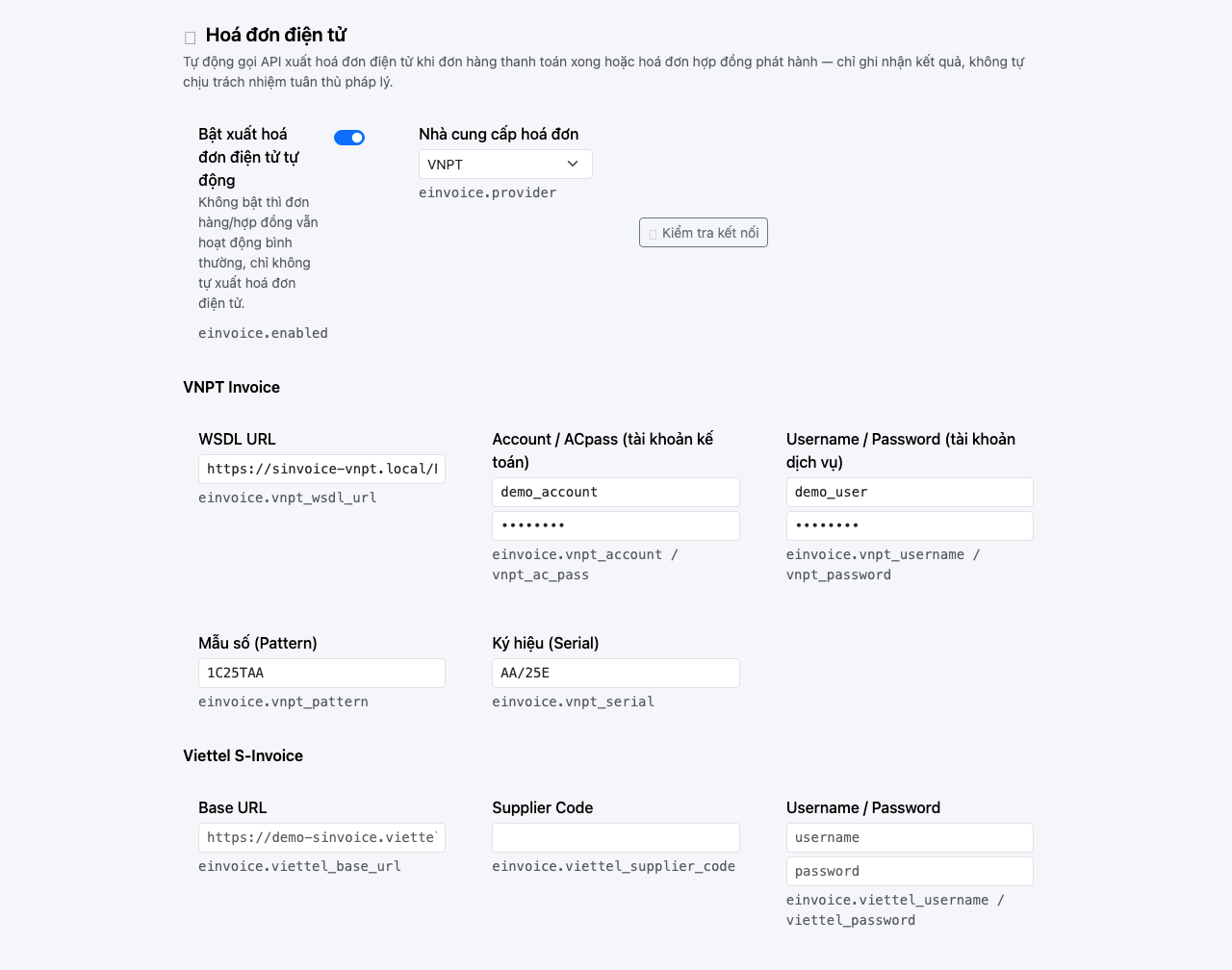
Company configuration → "Integration" tab — "E-invoice" section: enable/disable, select provider, configure connection information and "Test connection" button.
Directory → Company Configuration → Integration tab (/masterdata/company-setting): companies self-enable and self-configure connection information to the e-invoice provider they have already contracted with — DeliTMS does not sell e-invoice services, only calls the API of the provider the company has selected.
- Toggle "Enable automatic e-invoice issuance" — when disabled, orders/contracts still operate as before, just no automatic e-invoice issuance;
- Select provider: VNPT, Viettel or Mock (test mode, does not make external calls — used for training/testing);
- Configure connection information according to selected provider — VNPT: WSDL URL, Account/ACpass (accounting account), Username/Password (service account), Form number and Serial; Viettel: Base URL, Supplier Code, Username/Password;
- Click Test connection to verify the configured information can reach the provider before saving.
DeliTMS only records API call results to the provider (success/failure) — digital signing, legal issuance according to tax law is the responsibility of the provider (VNPT/Viettel) per the contract the company signed with them. A successful API call is considered completion of invoice issuance obligation on DeliTMS side.
When enabled, e-invoices are automatically issued in two cases: orders not belonging to contracts immediately when switching to "paid", and debt invoices according to contracts immediately when switching to "issued" status (chapter 07). The system also automatically emails invoices to customers according to the address on the invoice issuance record (section below) — no additional configuration needed.
Account and Notification Management
System Administration → Accounts (/account/account): create staff accounts (login email, initial password), assign role + working post office, lock/unlock accounts. Notifications (/account/notification): system notification center sent to each account (coordination, incidents, alerts).
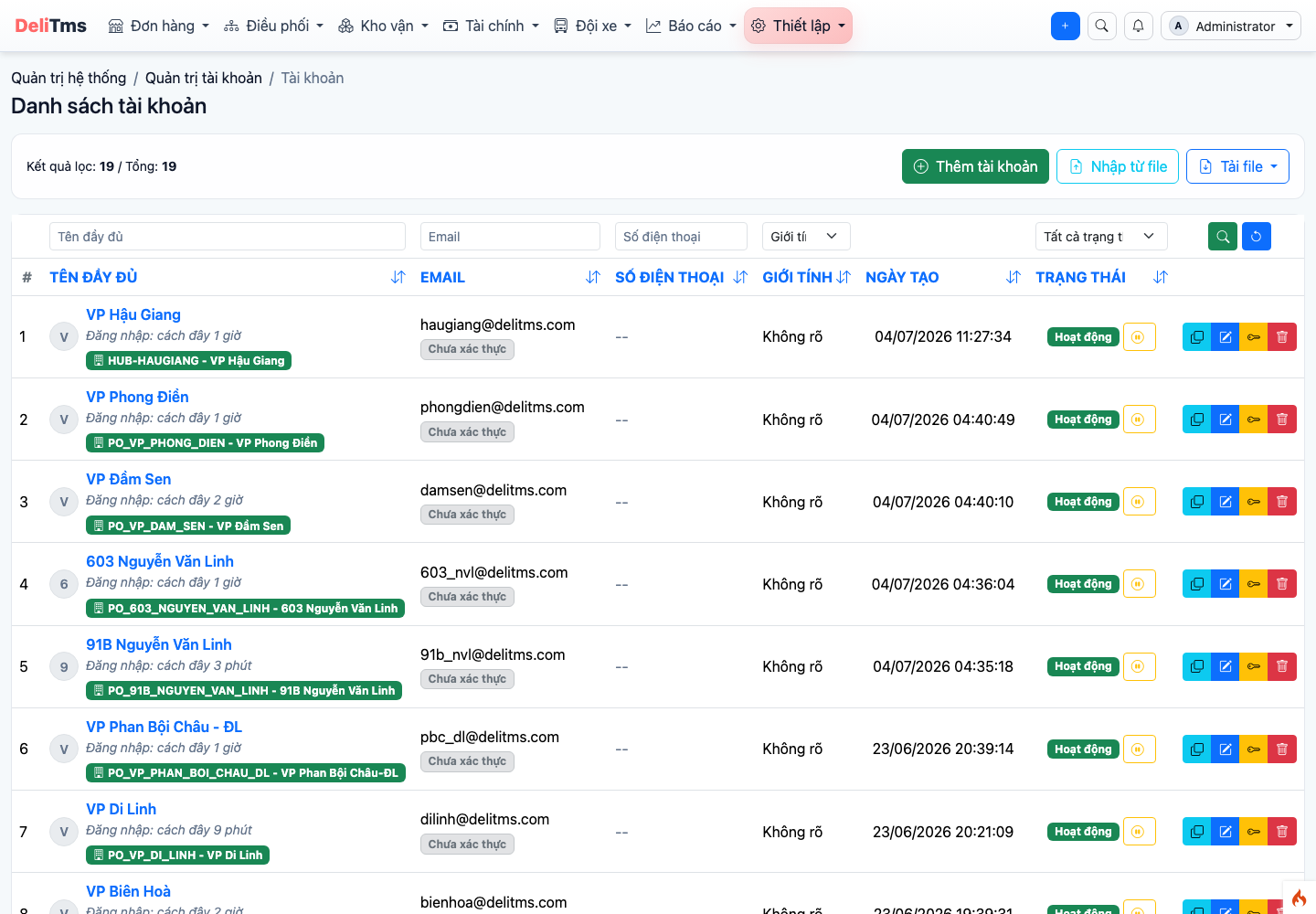
Account management — email, role, working post office, status.
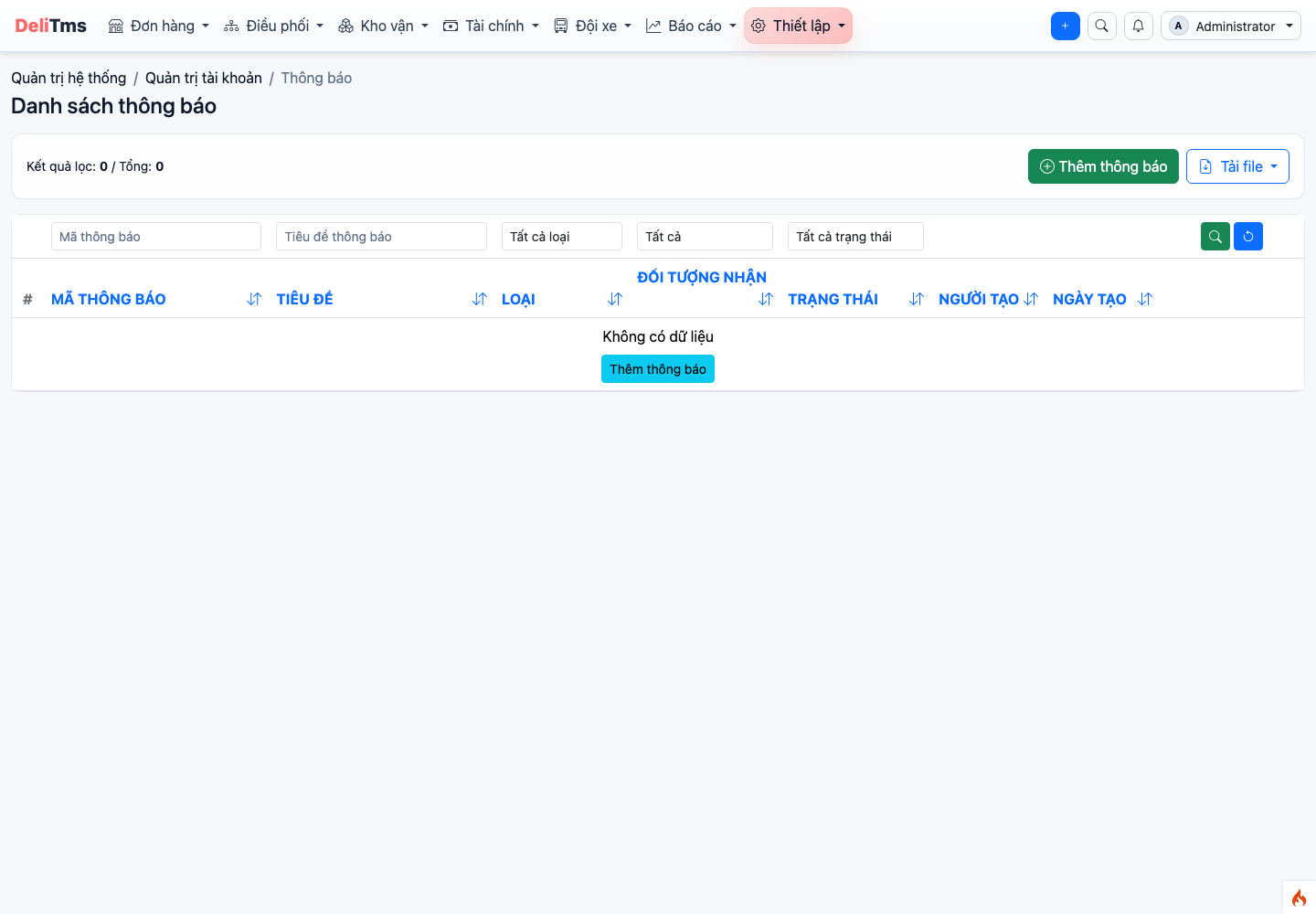
Notification center — all system notifications sent to account.
Master Data
The System Administration menu aggregates all master data — configure once, use throughout business operations. Proper master data management ensures consistency across post offices, vehicles, goods types, and pricing zones. Grouped by area:
| Group | Directory |
|---|---|
| Goods | Goods Type · Goods Unit · Packaging Specification · Value-added Service |
| Transportation Network | Post Office · Post Office Type · Inter-provincial Delivery Route · Pricing Zone · Administrative Unit · Location · Stop Point · Restricted Area |
| Fleet | Vehicle Type · Vehicle Brand · Fleet Team · Equipment Type · Fuel Type · Fuel Station · Vehicle Inspection Regulation · Inspection Center · Repair/Maintenance Type · Maintenance Group & Item · Workshop/Garage |
| Driver Personnel | Driver Team · License Class · Leave Reason · Mission Purpose · SOS Reason |
| Organization & Finance | Department · Position/Title · Industry · Supplier · Supplier Type · Expense Type · Document Type · Contract Type · Bank/Financial Institution |
Directory screens share a common operation template: list + Add/Edit/Change status, some support import from Excel.
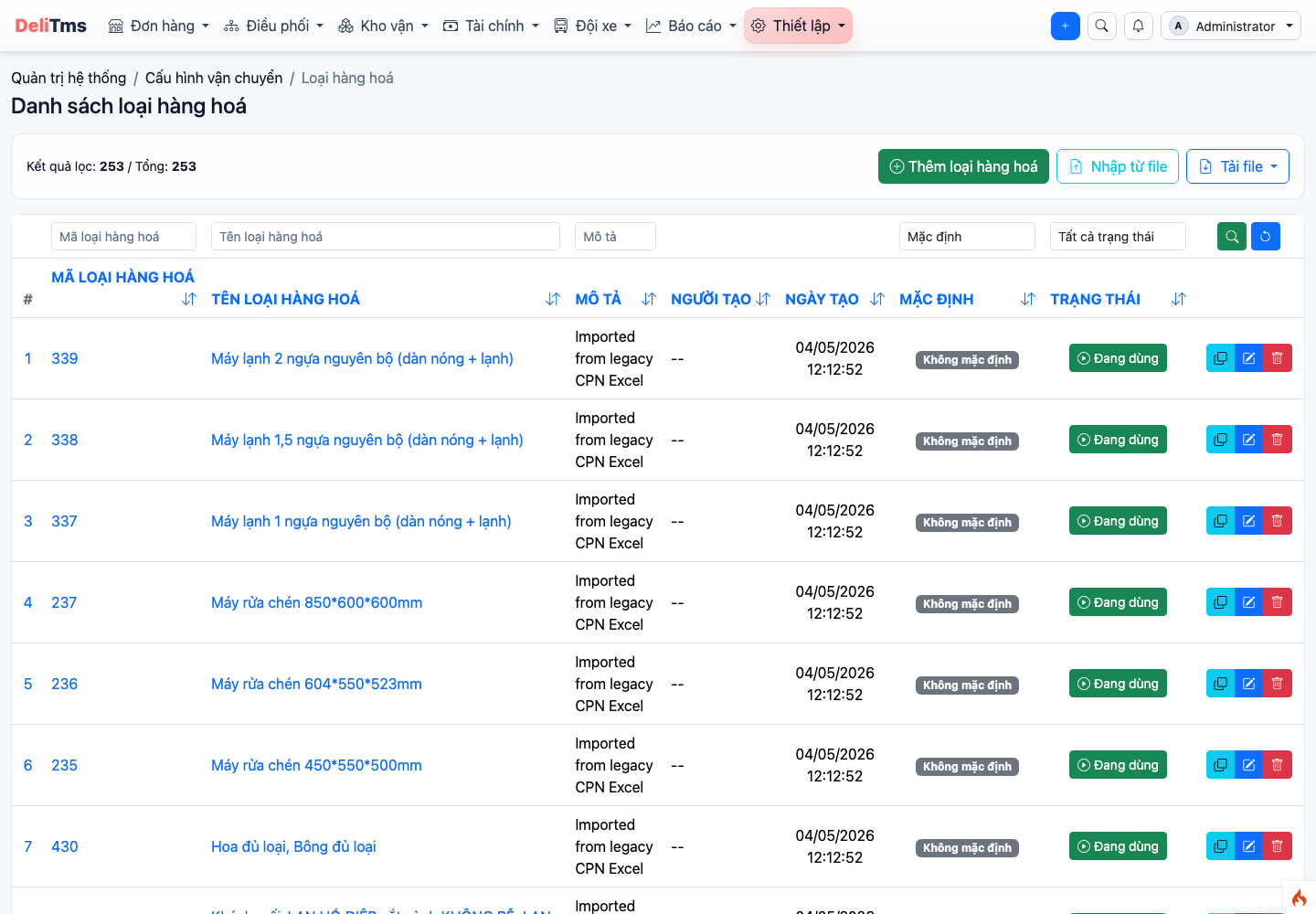
Goods Type directory — common operation template for directory screens.
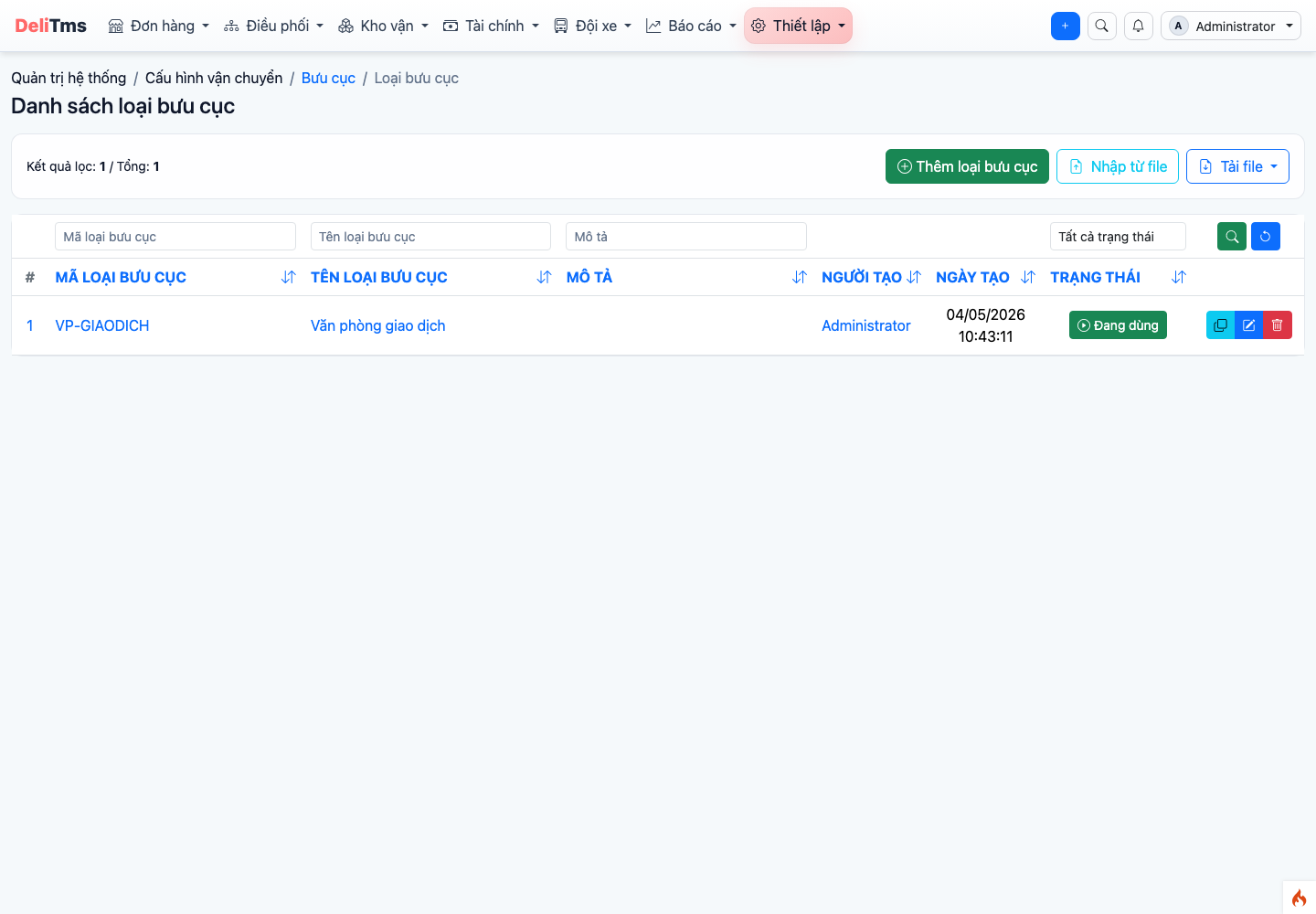
Post Office Type — transportation network group directory.
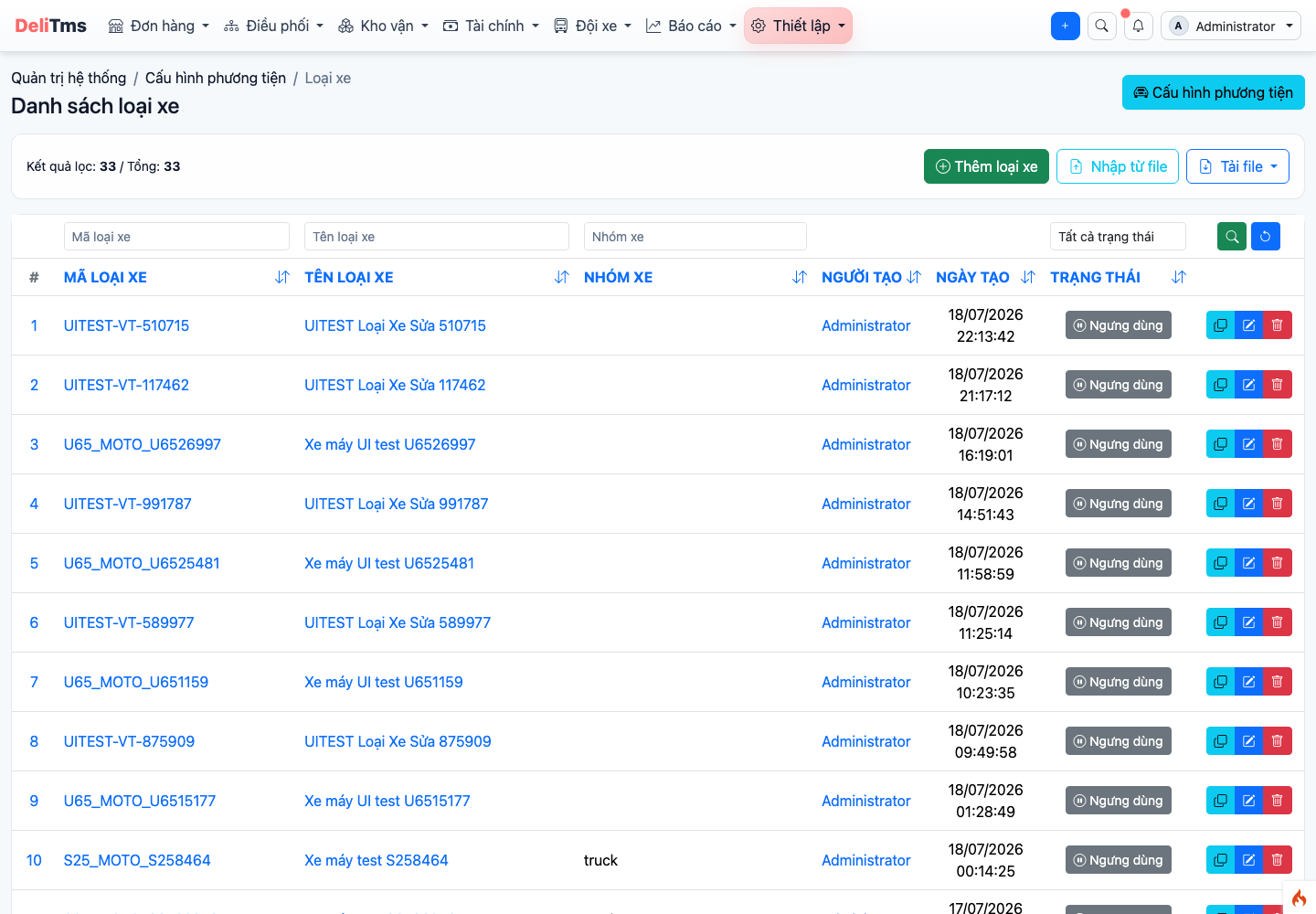
Vehicle Type — fleet group directory.
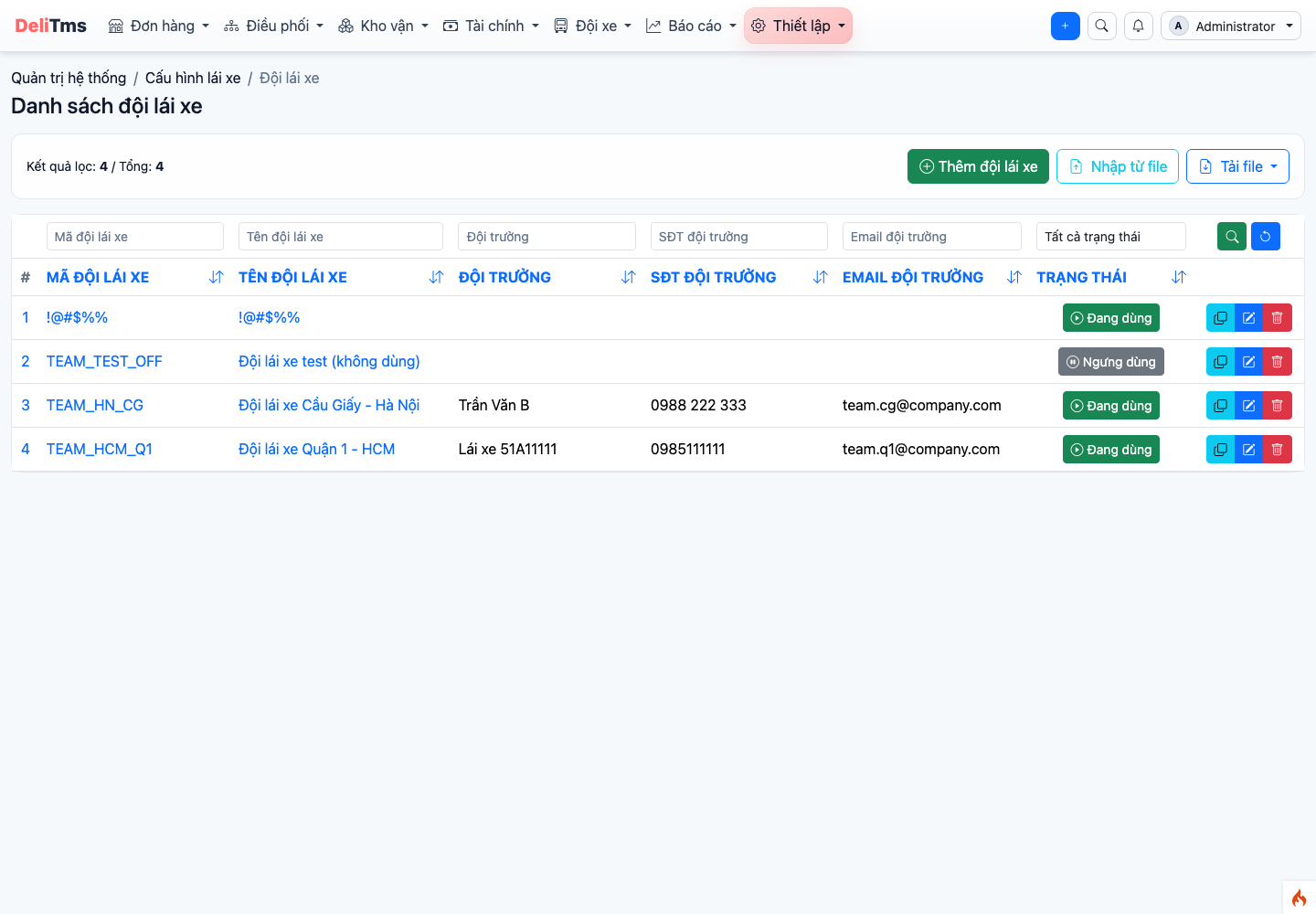
Driver Team — driver personnel group directory.
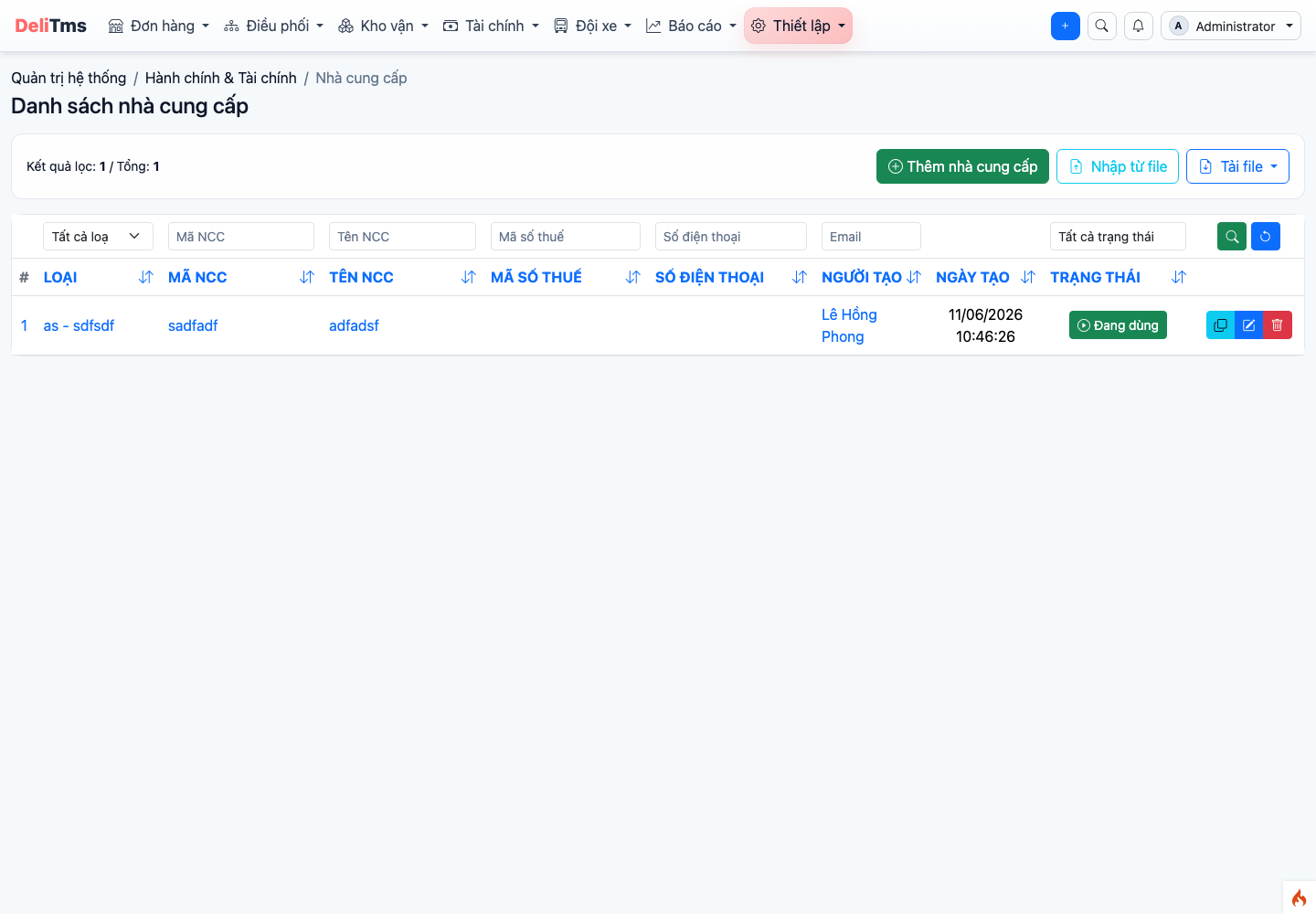
Supplier — organization and finance group directory.
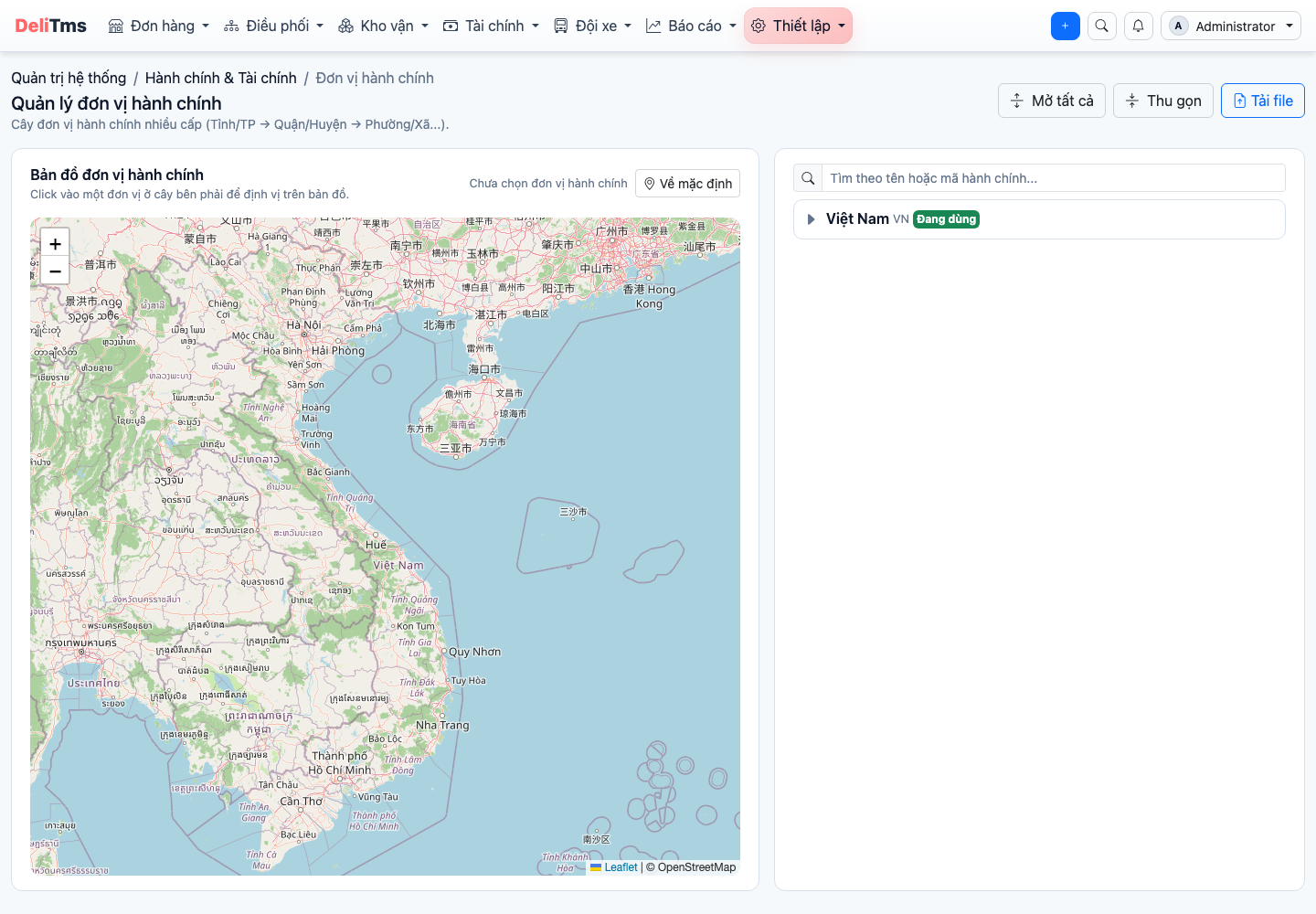
Administrative Unit — province/district/ward tree used for addresses and pricing zones.
Specifically for the Vehicle Type directory, the Add/Edit form has a "Order receipt limits (coordination & quotation)" section: maximum load (kg), maximum package length (cm), maximum volume (m³) and list of goods types NOT accepted — automatic coordination and quotation comparison by vehicle type are based on these limits; the vehicle type detail page reads back in full ("No limit" if left blank).
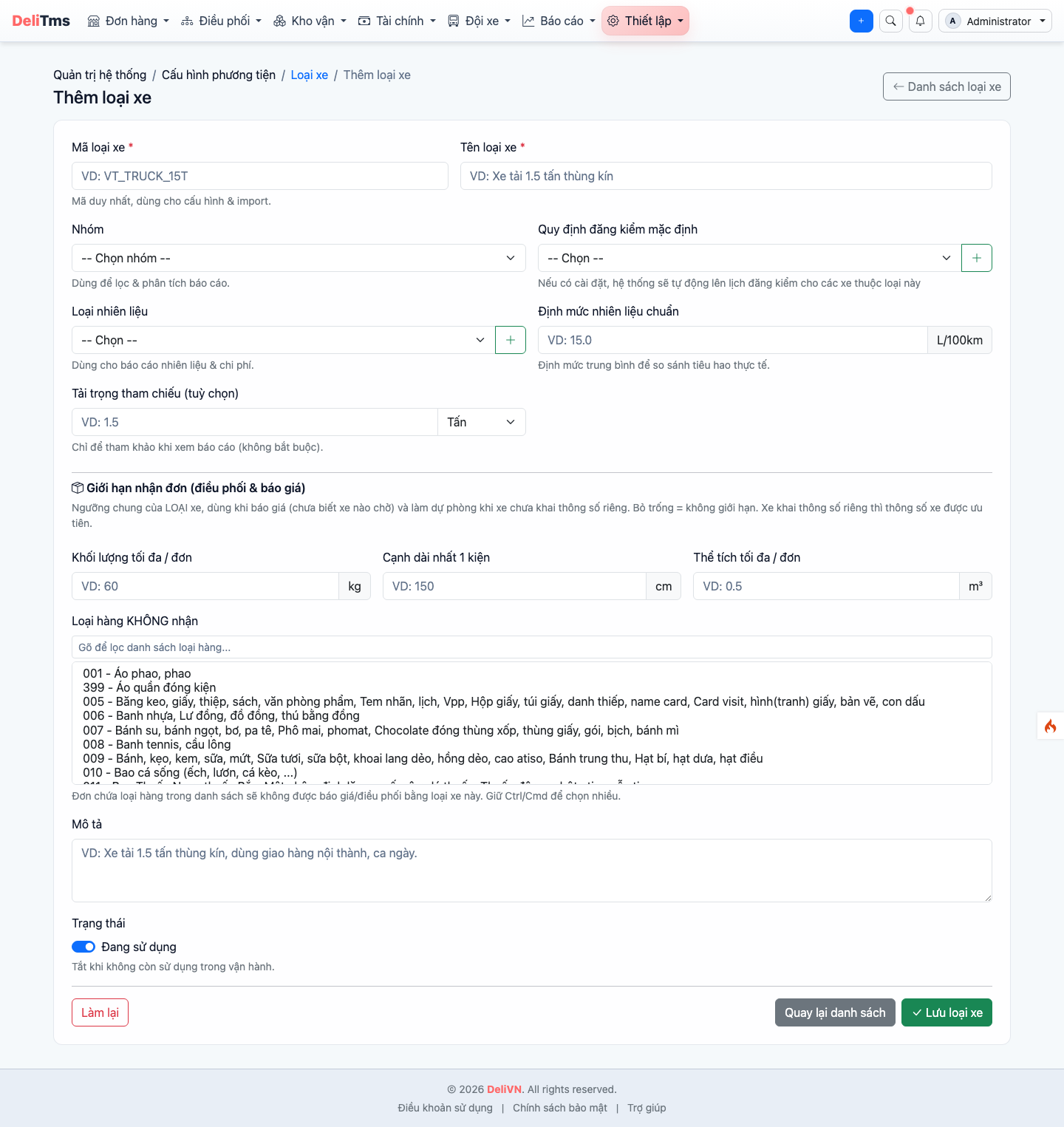
Vehicle type form — "Order receipt limits" section: load, package dimensions, volume and goods types NOT accepted.
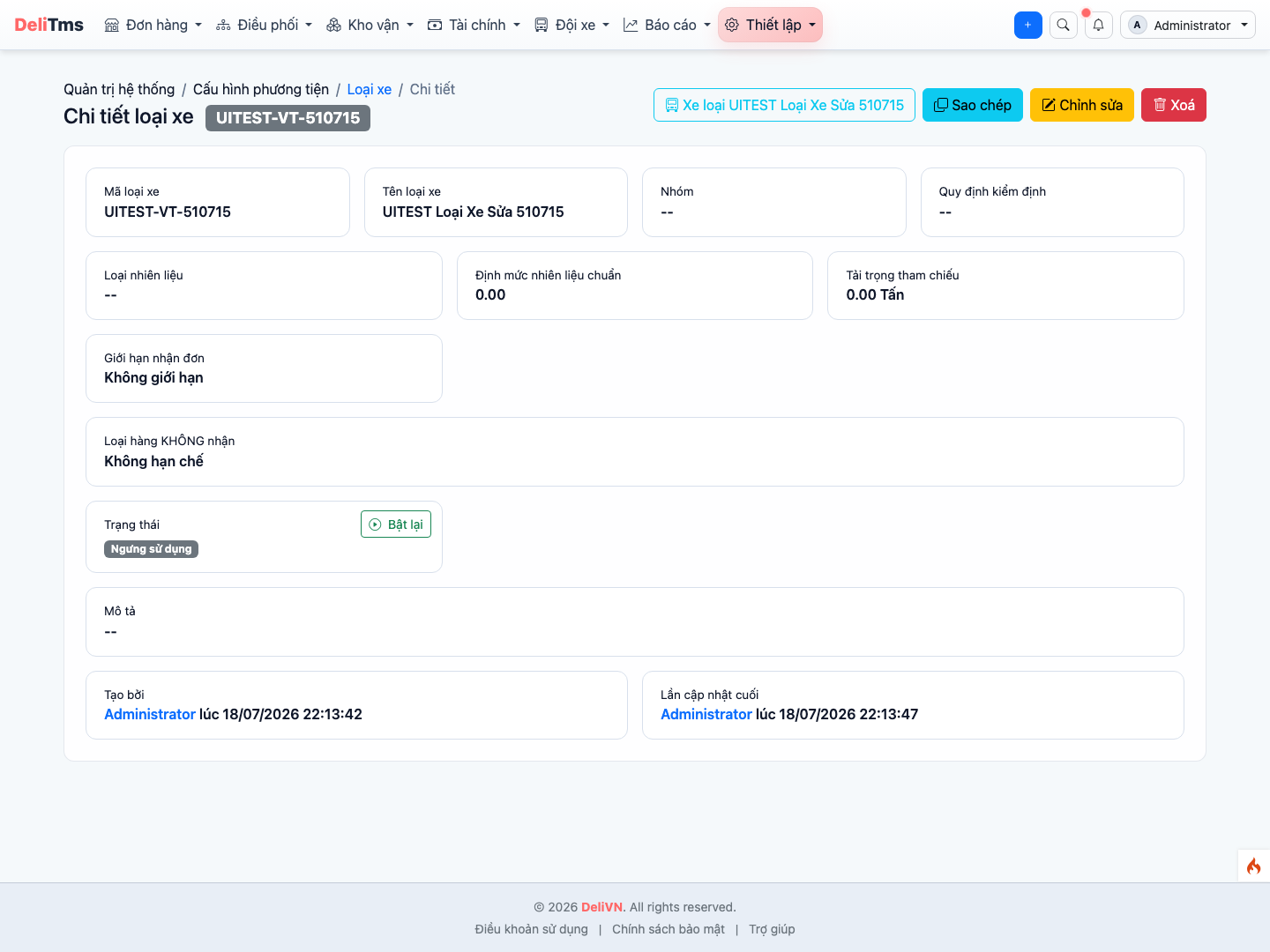
Vehicle type detail — line reading "Order receipt limits" and "Goods types NOT accepted".
4. Security Management Recommendations
- Enterprise owner account is only for administration; daily operations use staff accounts with appropriate roles;
- Delete and bulk data import permissions should only be granted to administrators;
- Price table and salary policy changes should be implemented with new version / new edition instead of overwriting the current version — preserve reconciliation data;
- Periodic review: list of active accounts, assigned roles, resigned personnel must have accounts locked.
5. Frequently Asked Questions
Staff has permissions but still cannot see data? — Check working post office scope (section 2): data belonging to other post offices is outside scope by design.
Granted new permissions but staff does not see menu? — Request logout/login again for session to receive new role.
How many administrators should there be? — Minimum two (backup), maximum according to scale but fewer is easier to control.