
1. Automatic Dispatch Based on Departure Schedule
The core of DeliTMS operations is the automatic dispatcher that works based on route departure schedules (configured in Chapter 01). The cycle for each "Ready for Transport" order:
- Select time slot: the nearest departure slot of the route that is still before the cargo cut-off time; orders on the same route in the same slot are grouped into one trip;
- Capacity control: limited by both route schedule (maximum pieces/kg/m³) and actual vehicle load capacity — cargo exceeding the remaining capacity is split to the next trip/slot;
- Assign vehicle and driver according to schedule: the system considers availability by time slot rather than instant status — a vehicle that just ran the morning slot can still be assigned to the afternoon slot if it can complete the turnaround; driver priority goes to the assigned person; drivers on approved leave are automatically excluded;
- Self-learning transit time: the duration of each route is updated from the history of completed trips, helping vehicle scheduling become increasingly realistic.
| Situation | System Handling | Dispatcher Action Required |
|---|---|---|
| Out of time slots in the day with remaining cargo | Order scheduled to first slot of next day + alert | Consider opening an extra trip outside schedule |
| Out of valid vehicles/drivers | Trip waits in planned status; when vehicle becomes available, system auto-scans and assigns additionally; notification "orders waiting for trip assignment" | Monitor; can manually assign vehicle/driver |
| Order created after trip in same slot was already created | Auto adds to trip if capacity remains and trip hasn't passed pickup point | — |
Manual operations always available: create off-schedule trip, merge/split orders, change vehicle — driver. All assignment paths (both automatic and manual) go through the same control layer: alert for vehicle/driver time slot conflicts, alert for capacity overload (confirmation required to intentionally override), block drivers on leave. Vehicles currently on the way back to the correct departure post office can still be assigned ahead — the system only blocks at the loading/departure step until the old trip ends.
2. Pickup Trips
Operations → Pickup Requests: orders selecting pickup service generate requests here. Dispatchers group nearby requests into pickup trips (/transport/operation/pickup), assign drivers — drivers execute via mobile app (Chapter 05). Results per location: collected in full / partially collected (specify missing portion) / failed (state reason). Cargo returned to post office is handed over to the confirmation – labeling process from Chapter 03.
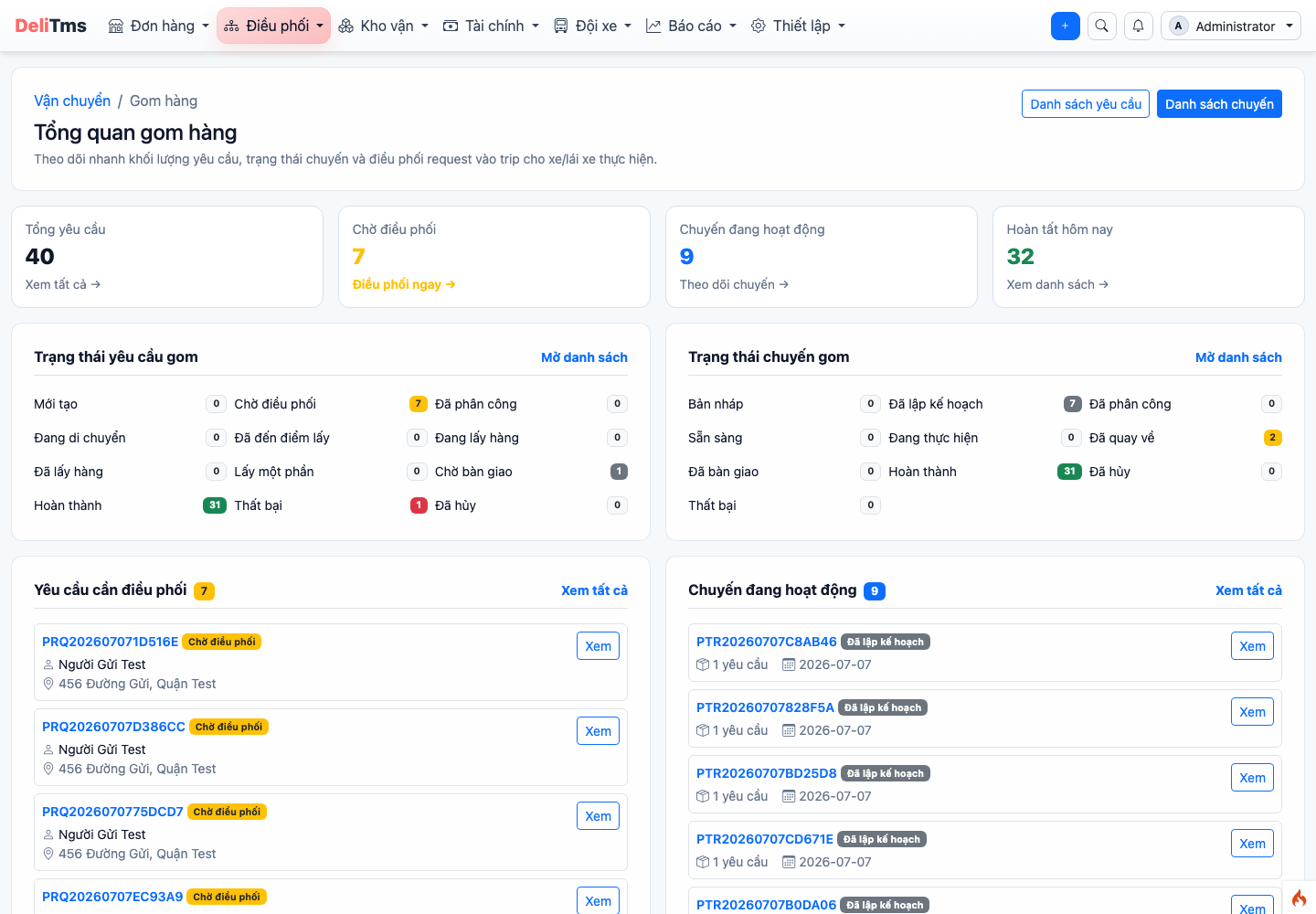
Pickup trips — status of each trip and collection results by location.
3. Linehaul Trips — Operations by Leg
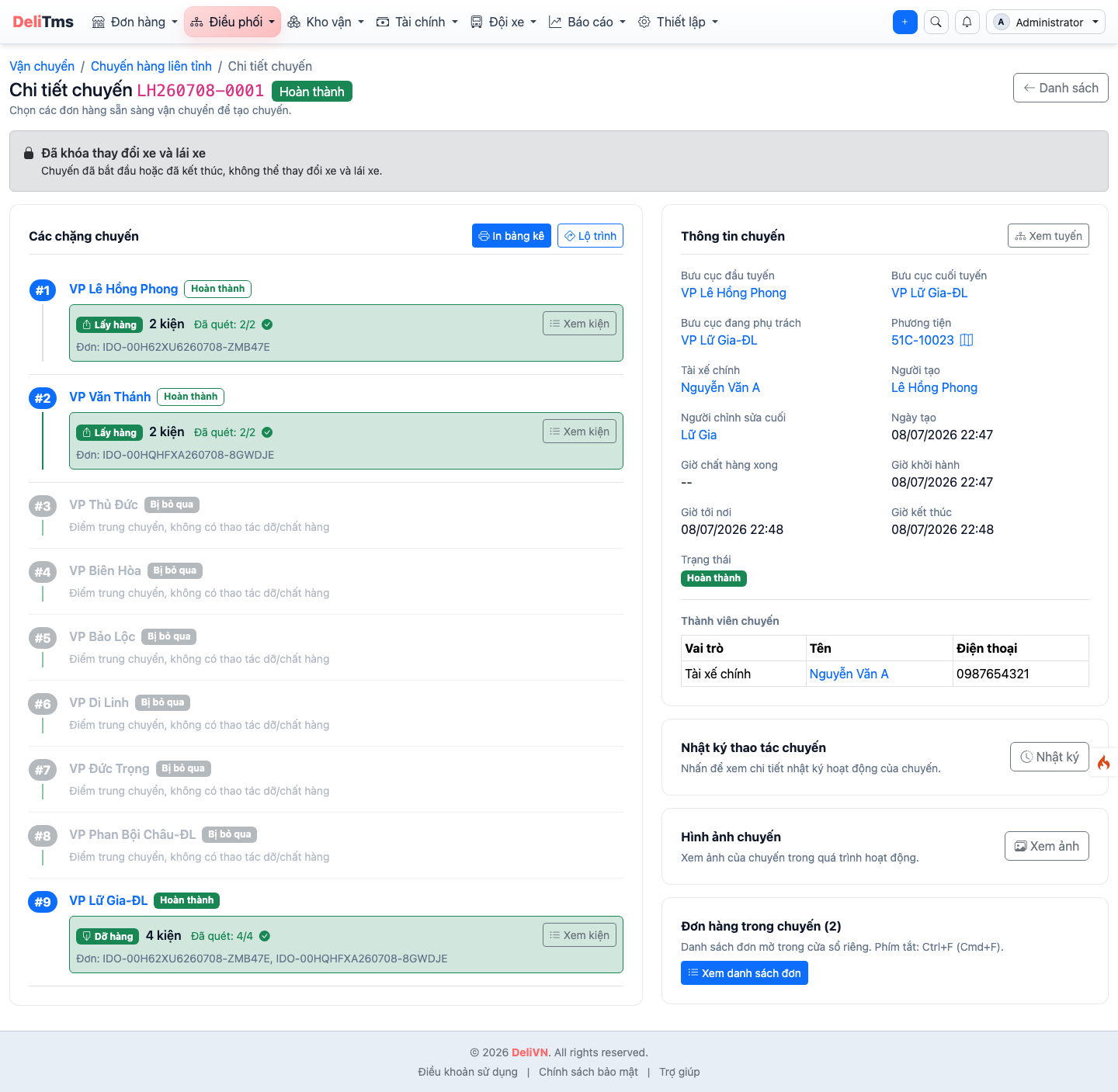
Linehaul trip detail — journey by leg, list of pieces loaded/unloaded at each point, operation log.
Trips run according to the multi-leg journey of the route. Sequence at each point:
- Departure conditions: trip has vehicle + driver; driver confirms vehicle inspection (with photo) before being allowed to load cargo;
- Loading cargo: scan each piece's code onto vehicle. Piece not found at post office → create loading shortage report immediately at scanning step (transferred to Incident Center — Chapter 09). Loading complete, trip records departure;
- Arriving at station: pieces reaching destination at station are scanned for unloading; pieces continuing on remain on vehicle (system blocks mistaken unloading of pieces with remaining journey ahead); piece that should be on vehicle but not found → unloading shortage report with vehicle compartment photo;
- Destination warehouse processing for just-unloaded cargo: hand over at counter (customer waiting) or store in warehouse for holding — details in Chapter 06;
- Station with no tasks: driver confirms "continue"; final station: warehouse processing complete, trip finished — vehicle and driver return to dispatch pool.
Bus model: running trip can still accept additional orders at stations not yet passed — dispatcher auto-merges when suitable, ensuring trip doesn't run empty on remaining direction.
Relay journey: orders going beyond trip's end point are unloaded at hub; next trip (same day or later slot) picks up — order status "Waiting for Transfer" and automatically enters dispatch queue for next leg.
4. Transshipment
Post offices not located on trunk routes are connected by transshipment trips (/transport/operation/transshipment): moving cargo from post office to route hub (or vice versa) following journey plan steps. Dispatchers create transshipment trips from the waiting cargo list at post office, assign vehicle — driver as regular trips.
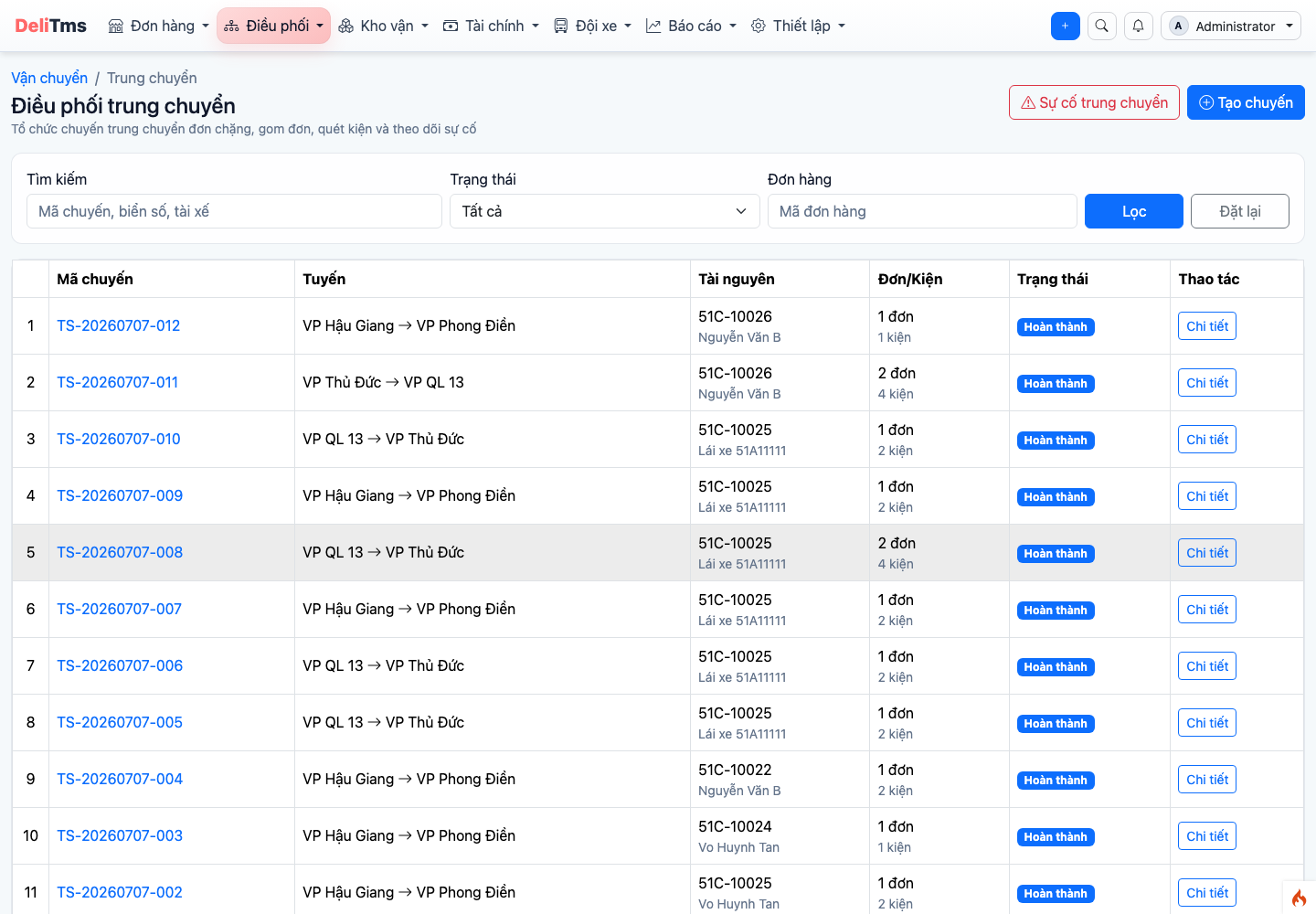
Transshipment trips — connecting off-trunk-route post offices with hubs.
5. Delivery (Last Mile)
Cargo arriving at destination post office with delivery option selected generates delivery request (/transport/operation/request/delivery/intercity-delivery). Dispatchers group requests into delivery trips, assign drivers; drivers deliver to each location — confirm with photo, collect charges (if recipient pays) and COD.
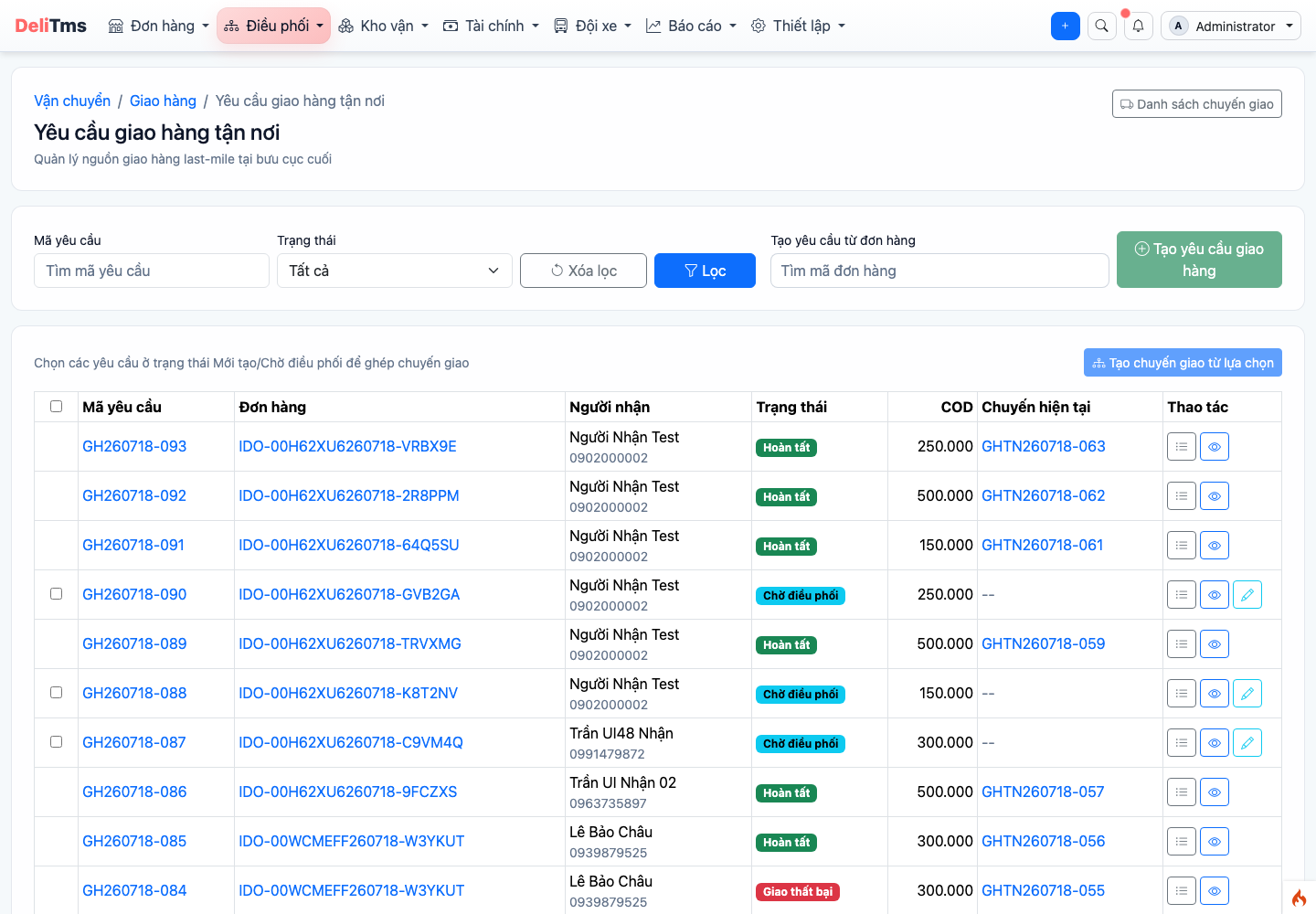
Delivery requests — grouping requests into delivery trips for drivers.
Failed delivery: driver records reason (customer rescheduled, unreachable, refused to accept...). System supports re-delivery according to appointment schedule; failed beyond specified number of times → initiate return process: create reverse order back to sending post office, when cargo arrives system prompts to collect outstanding amounts from sender (return shipping, incidental fees) before handing back cargo.
6. Incoming Cargo Monitoring and Dispatch Board
Post Office Inbox (/transport/operation/post-office-inbox): receiving staff see upcoming trips in advance, number of pieces, and two SLA milestones — processing out of staging area and shelving in warehouse — with overdue alerts. This cargo tracking feature supports tracking pieces across entire network when customers inquire about cargo location.
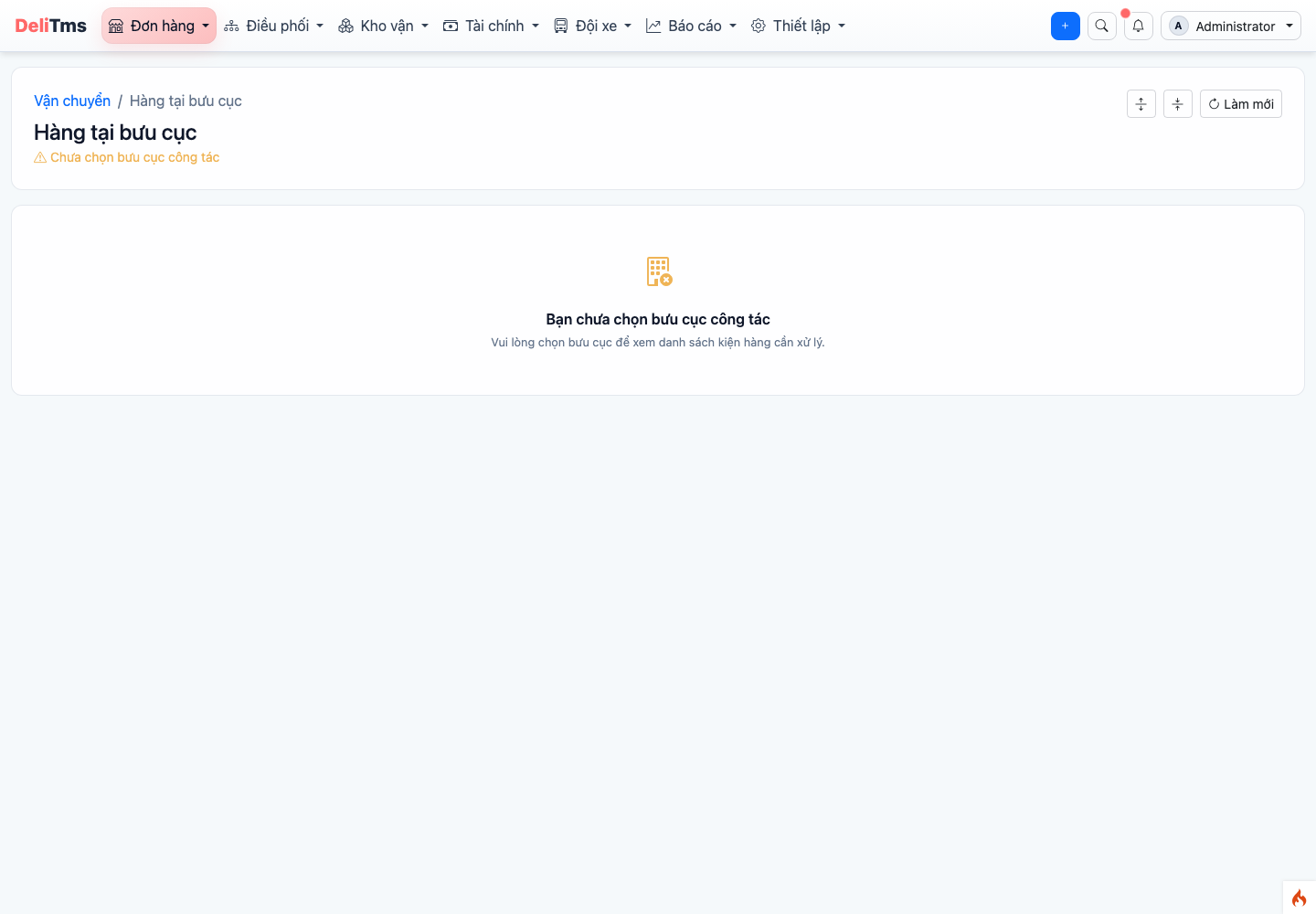
Post office inbox — incoming trips, warehouse processing deadlines, and network-wide tracking.
Linehaul Dispatch Screen
Transport → Linehaul Dispatch (/transport/operation/linehaul-dispatch) is the dispatcher's workstation: orders waiting for trip assignment by route, trip plans for time slots, merge/split operations and opening extra trips.
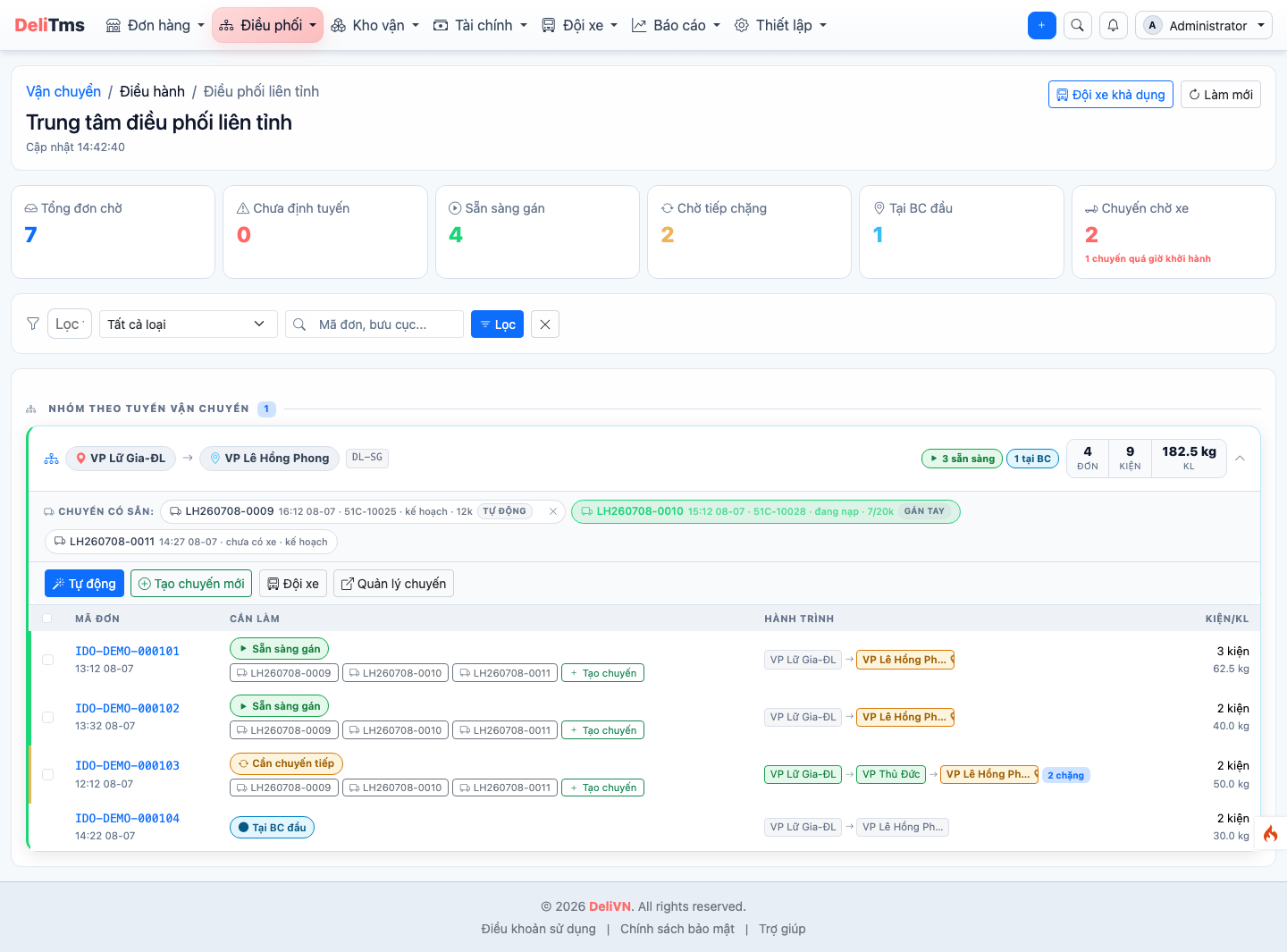
Linehaul dispatch — waiting orders by route and trip plans for time slots.
- Select multiple orders at once — check boxes at row start for ready-to-assign orders, action bar appears for auto-dispatch, assign to existing trip, or create new trip for the entire group.
- Available fleet — button in top right corner (or within each route group) opens vehicle board by post office, divided into three groups: idle on-site, idle at other post offices (with distance), and busy vehicles returning soon. This is also the priority order the system uses for auto-assignment; within same group, vehicles with less mileage today are chosen first.
- Assignment source and unassignment — each trip displays whether vehicle was manually or automatically assigned; trips not yet departed have ✕ button to unassign, returning vehicle to dispatch pool.
- Trips waiting for vehicles — separate indicator at page top, turns red when trips are past departure time without assigned vehicle.
Auto-Dispatch for Pickup and Delivery Trips
Enterprises enable/disable automation for each segment in Settings → Company Configuration → Linehaul Operations tab, "Auto-dispatch" section:
- Auto-dispatch route transport trips — ready-to-transport orders automatically assigned to trips by route/schedule and auto-assign vehicles when available (default enabled). Disable for full manual control on dispatch board — action buttons still work normally;
- Auto-dispatch pickup trips — new pickup requests automatically grouped into trips and assigned vehicle/driver immediately, no manual action needed (default disabled);
- Auto-dispatch delivery trips — pending delivery requests automatically assigned to delivery trips (default disabled);
- Auto-create delivery requests when cargo arrives at destination post office — orders registered for delivery service automatically generate delivery request when all pieces arrive at destination post office, seamlessly connecting linehaul → delivery (default disabled).
Each segment is independent according to business model: units only running linehaul keep defaults, full-service logistics units enable all four for fully automatic three-segment flow, units wanting complete manual control disable all four.
Real-time Monitoring
Three overview screens in Transport menu:
- Overview (
/transport) — daily metrics: new orders, in transit, awaiting delivery, incidents; - Map (
/map) — real-time vehicle locations on map; - Monitor (
/monitor) — status board of running trips, schedule deviation alerts. Detailed analytical reports: Chapter 12.
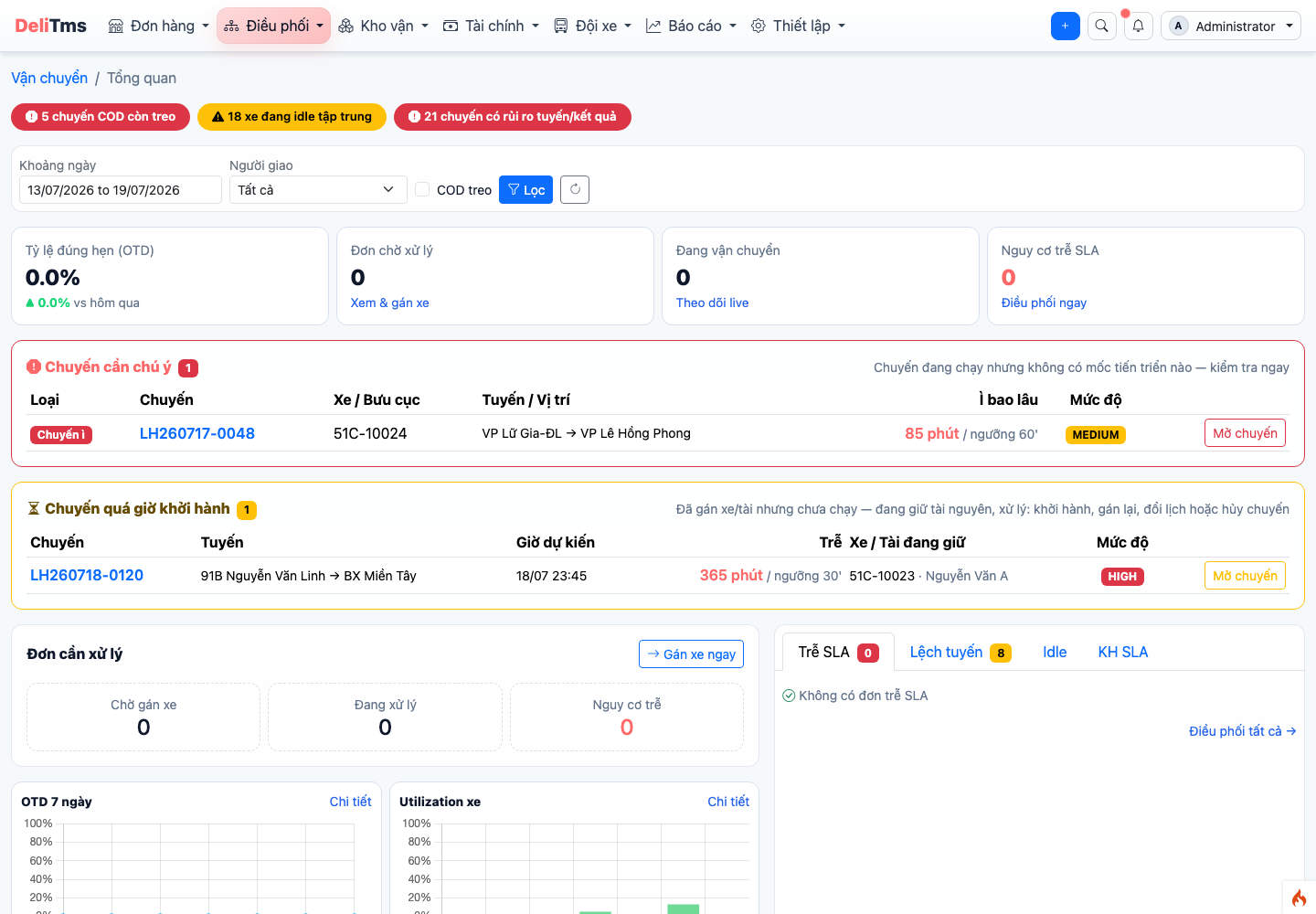
Transport overview — operational picture for the day, with key transport operations metrics.
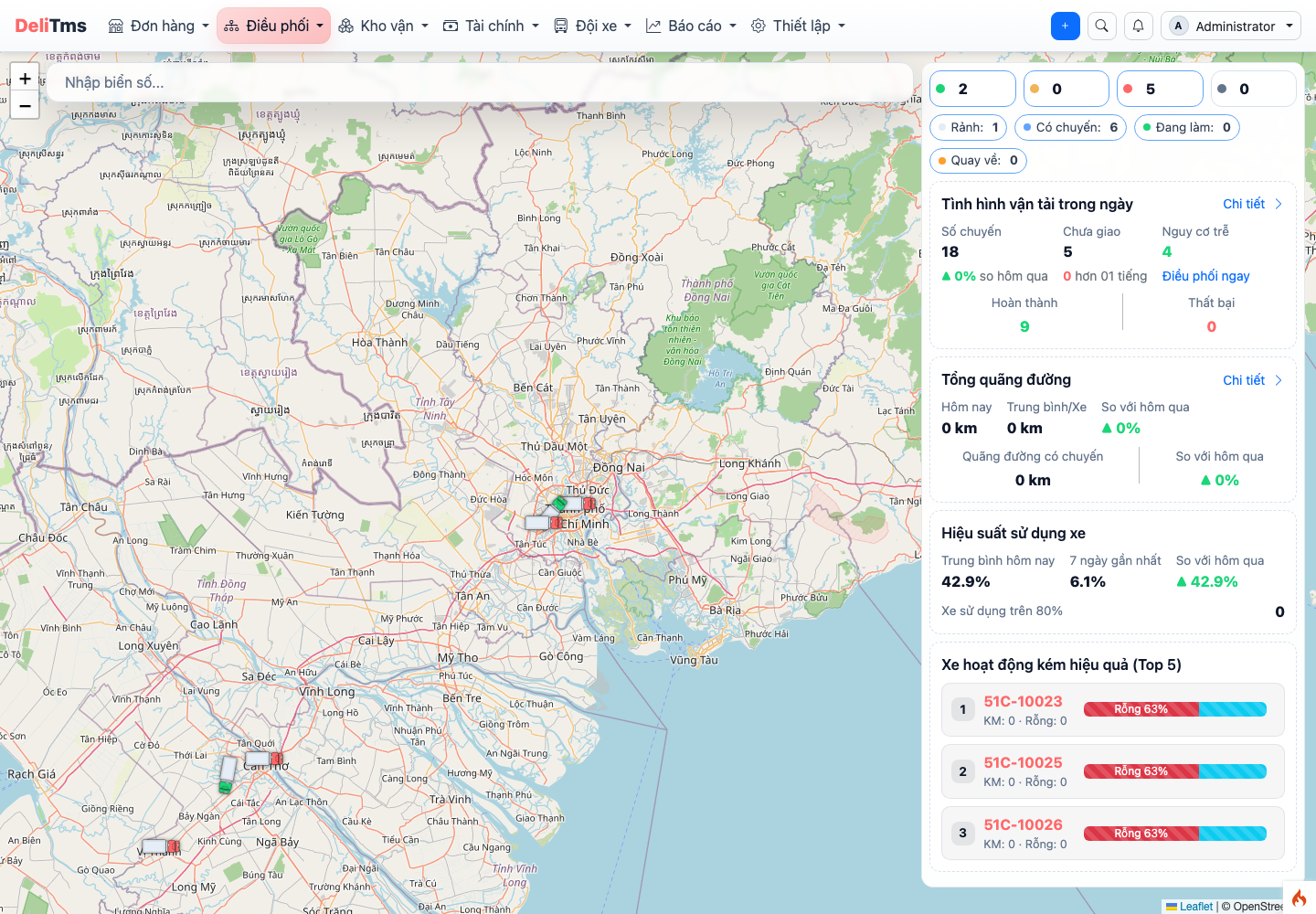
Map — real-time vehicle locations.
7. Frequently Asked Questions
Why is trip created but no vehicle assigned? — At creation time, no valid vehicle/driver remained for that time slot. System will auto-assign when vehicle becomes available; if urgent, manually assign or transfer vehicle from another post office.
Adding order to trip shows capacity overload? — Total planned load exceeds route schedule limit or vehicle capacity. Confirm overload (if actually fits) or split order to next trip.
Assigning driver shows conflict with another trip? — Driver already has trip in overlapping time slot. Choose another person, or adjust trip time; consecutive trips (non-overlapping times) can be assigned normally.